


If you run a website, encountering frustrating errors is quite common. One such common problem that you might face on WordPress is the 413 Request Entity Too Large error. This error can prevent you from uploading files, themes, or plugins. Understanding the cause and knowing how to fix it can save you time and stress. So, let’s check out step by step how to resolve this error effectively.
What is the 413 Request Entity Too Large Error?
The 413 Request Entity Too Large error occurs when a file exceeds the upload limit set by your server. Essentially, WordPress or the server refuses the file because it is too big.
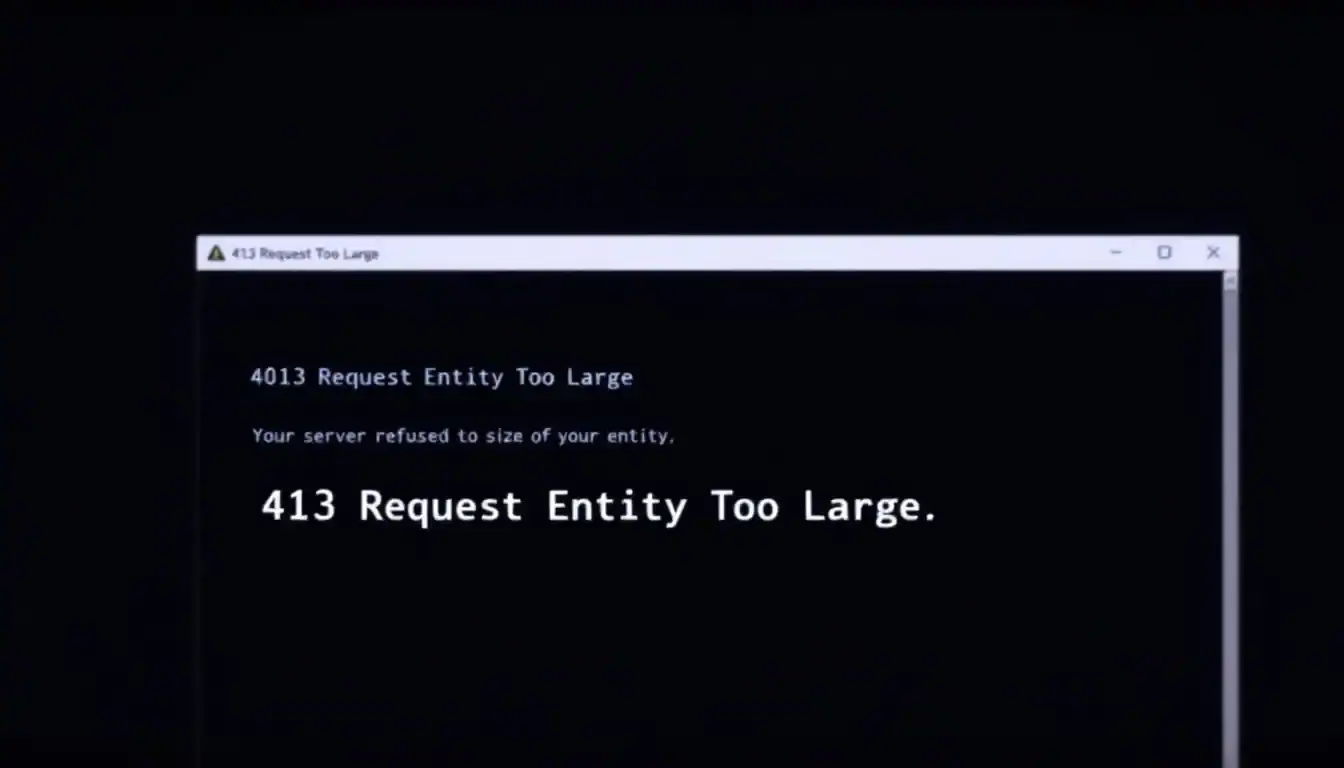
You might see this error when trying to upload plugins, themes, or media files. The message can vary slightly depending on your server. It may appear as:
- “Request Entity Too Large”
- “413 Error”
- “Upload Failed – File Too Large”
This error is mostly related to server configuration settings, including PHP, Nginx, Apache, or other web server rules. Fixing it involves adjusting these settings safely.
Causes of the 413 Request Entity Too Large Error
Understanding why the 413 Request Entity Too Large error occurs is the first step in resolving it. This error typically appears when your server or WordPress site cannot handle the size of the file you are trying to upload. Several factors can trigger this issue, and knowing them helps you choose the right solution.
- File Size Exceeds Server Limit: One of the most common causes is that your file exceeds the server’s upload limit. Servers have maximum file size restrictions, and if your file is larger than this limit, the server will block it.
- Server Configuration Issues: Another frequent cause is improper server configuration. Files like
htaccess,php.ini, ornginx.confmay have low upload limits or restrictive settings that prevent larger uploads.
- WordPress or Plugin Restrictions: WordPress itself can also impose limits. Settings in wp-config.php or certain plugins may restrict the maximum upload size, leading to the 413 error.
- Hosting Plan Limitations: Shared hosting plans often have stricter limits for file uploads. If your plan is restrictive, even moderately sized files can trigger the error.
- Incorrect Permissions: Finally, incorrect server permissions can block file uploads. Even if limits are increased, files may fail to upload if the server does not have proper access rights.
Check out: Expert Tips to Fix Error Code 522
Simple Fixes to Resolve the 413 Error
If you’re not very technical, some simple fixes can resolve the issue quickly.
Increase File Upload Limit via WordPress
WordPress uses PHP settings to manage file uploads. You can increase the limit by editing one of these files:
php.ini file:
upload_max_filesize = 64M
post_max_size = 64M
memory_limit = 128M
.htaccess file (Apache server):
php_value upload_max_filesize 64M
php_value post_max_size 64M
php_value memory_limit 128M
wp-config.php file:
@ini_set('upload_max_size' , '64M' );
@ini_set('post_max_size','64M');
@ini_set('memory_limit','128M');
After making these changes, clear your cache and try uploading the file again.
Check Hosting Plan and Server Settings
Some hosting providers set default upload limits that may be too low for your files. Reviewing your web hosting provider settings can help you identify restrictions. If needed, contact your hosting provider to increase upload limits or adjust server configurations to allow larger file uploads safely and effectively.
Use a Plugin for Large File Uploads
If modifying server files seems complex, WordPress plugins offer a simpler solution. Tools like Increase Max Upload Filesize can safely adjust upload limits without manual edits. These plugins help increase file size allowances, making it easy to upload larger themes, plugins, or media files without triggering the 413 error.
Advanced Fixes for 413 Errors
Advanced troubleshooting may be required when simple fixes don’t resolve the 413 Request Entity Too Large error. These methods involve adjusting server configurations or analyzing settings that directly control file uploads. Understanding these approaches ensures a permanent and effective solution.
Nginx Server Configuration
For websites running on Nginx, the error often occurs due to a low client body size limit. You can fix this by editing the nginx.conf file and increasing the client_max_body_size. After updating the file, it’s essential to restart Nginx so the new settings take effect, ensuring the server can handle larger file uploads.
Apache Server Adjustments
On Apache servers, the error may result from restrictive request body limits. Adjusting the httpd.conf or .htaccess file with the LimitRequestBody directive can solve the issue. Remember to restart Apache after changes to apply the new configuration, allowing larger uploads without triggering the error.
PHP Settings
Sometimes, PHP settings limit file uploads. Editing the php.ini file to increase upload_max_filesize and post_max_size can resolve this. Additionally, restarting PHP-FPM or the web server ensures that these new limits are recognized and applied correctly.
Review Server Logs
Advanced troubleshooting can also involve reviewing server logs. Checking error.log or access.log helps identify persistent issues or conflicts causing the 413 error. This step is useful when previous changes don’t fully resolve the problem.
By following these advanced fixes carefully, you can overcome the 413 error and ensure your WordPress site handles large file uploads smoothly.
Explore: How to Fix HTTP 429 Too Many Requests Error
DIY vs Emergent Support Services
Fixing the 413 Request Entity Too Large error can often be done on your own, especially for simple upload limit adjustments. However, some situations require professional intervention. Understanding when to handle it yourself versus seeking support can save time and prevent further issues.
Do-It-Yourself Fixes
You can attempt basic fixes if the error is caused by low upload limits or simple server settings. Editing php.ini, wp-config.php, or .htaccess files to increase upload sizes often resolves the issue. This approach works well for users with moderate technical skills and direct server access.
Read: WordPress Emergency Support Tips to Fix Website Crashes
When to Seek Professional Support
In some cases, DIY solutions may not be sufficient.

For example:
- Persistent Errors: If the 413 error continues even after increasing limits, deeper server issues may exist.
- Shared Hosting Restrictions: Limited access in shared hosting plans can prevent changes to server files.
- Complex Server Configurations: Advanced setups like Nginx or custom Apache configurations may require expert knowledge.
Benefits of Professional Help
Contacting your hosting provider or a WordPress expert ensures the error is resolved safely. Professionals can adjust server settings correctly, avoid configuration mistakes, and restore upload functionality quickly, reducing downtime and frustration.
Experiencing Website Downtime or Want to Fix Urgent Errors?
Our expert team provides fast and reliable WordPress support to fix issues and restore your site quickly.
Preventing Future 413 and Other Upload Errors
After resolving the 413 Request Entity Too Large error, it’s important to take proactive steps to prevent similar issues in the future. Implementing best practices ensures smooth file uploads and minimizes downtime on your WordPress site.
Regularly Monitor Upload Limits
One of the simplest ways to avoid errors is by keeping track of file sizes and server upload limits. Regular monitoring helps you identify when adjustments are needed, preventing unexpected upload failures.
Choose a Suitable Hosting Plan
Your hosting plan can significantly affect upload capabilities. Higher-tier or managed hosting plans often allow larger file uploads and better server performance. Switching to a more suitable hosting plan can prevent recurring errors and improve overall site stability.
Keep WordPress Updated
Keeping WordPress core, themes, and plugins up to date improves compatibility and security. Updates often resolve conflicts that could otherwise trigger errors like the 413 Request Entity Too Large issue.
Maintain Backups
Regular backups are essential for any WordPress site. In case of server errors or failed uploads, having recent backups ensures you can restore your site without data loss, saving time and effort.
Use Security and Optimization Plugins
Plugins designed for security and optimization can help manage large files, prevent crashes, and reduce errors. These tools optimize server performance and ensure that your site handles uploads efficiently.
By following these steps, you can minimize the risk of encountering 413 and other upload-related errors. Proactive monitoring, proper hosting, and maintenance practices help keep your WordPress site stable and reliable.
Investing in Monthly WordPress Maintenance Services to Prevent WordPress Issues
Regular maintenance is crucial for keeping a WordPress website secure, fast, and fully functional. Many site owners underestimate the importance of ongoing maintenance, often only addressing issues when they become critical.
Investing in monthly WordPress maintenance services can prevent errors, reduce downtime, and ensure a smooth user experience. Understanding the benefits helps site owners make informed decisions about maintaining their websites.
Keep Your WordPress Site Healthy
Our monthly WordPress maintenance services prevent errors and optimize your site for a seamless user experience.
Ensures Website Security
One of the most important reasons to invest in monthly maintenance is security. WordPress sites are frequent targets for hackers due to outdated themes, plugins, or weak passwords.
Monthly maintenance includes regular security scans, plugin updates, and vulnerability monitoring. This proactive approach reduces the risk of malware infections, data breaches, and unauthorized access, protecting both the site and its users.
Keeps WordPress Updated
WordPress, themes, and plugins are regularly updated to improve functionality and fix bugs. However, manually updating these components can be time-consuming and risky if done incorrectly.
Monthly maintenance services ensure updates are applied promptly and safely, preventing compatibility issues or errors that could disrupt your site’s performance.
Improves Site Performance
Website speed and performance significantly affect user experience and search engine rankings. Maintenance services include optimizing databases, cleaning unused files, and monitoring server performance. Regular optimization prevents slowdowns, improves page load times, and ensures visitors have a smooth and efficient browsing experience.
Prevents Downtime and Errors
Technical issues such as the 413 Request Entity Too Large error, broken links, or server misconfigurations can harm user experience and site credibility. Monthly maintenance proactively identifies potential problems, applies fixes, and prevents small issues from turning into critical errors. This reduces downtime and keeps your site running smoothly.
Provides Regular Backups
Unexpected failures, hacking attempts, or hosting issues can lead to data loss. Maintenance services include automated, regular backups to ensure your website can be restored quickly in emergencies. This peace of mind allows site owners to focus on business operations without worrying about data loss or downtime.
Saves Time and Resources
Managing a website requires technical expertise and time. Outsourcing maintenance to professionals frees up resources, allowing site owners to focus on core business activities. Additionally, experts can address complex issues faster, reducing potential costs associated with fixing errors later.
Enhances SEO and User Experience
A well-maintained website performs better in search engines and provides a better experience for visitors. Regular maintenance ensures that your site remains fast, secure, and error-free, positively impacting SEO rankings and visitor engagement.
By investing in monthly WordPress maintenance services, site owners can prevent common issues, enhance security, improve performance, and ensure long-term success.
Conclusion: Best Practices for Handling 413 Errors
The 413 Request Entity Too Large error is a common issue in WordPress but can be resolved effectively with proper steps.
Start by identifying the cause: file size limits, server configuration, or plugin restrictions. Then, try simple solutions like increasing upload limits through PHP or WordPress files. If that fails, move to advanced server-side fixes for Nginx or Apache.
Always monitor server settings, choose the right hosting plan, and maintain regular backups. Consulting hosting providers or WordPress experts can save time and prevent mistakes. By following these best practices, you can manage large uploads efficiently and prevent future errors on your WordPress site.
FAQs About WordPress Errors
How can I increase the file upload size in WordPress?
You can increase the file upload size by editing the PHP file or adjusting values in the WP content folder. This allows larger files to be uploaded without triggering errors.
Why do I get the same error when uploading files?
The same error may appear if server settings or WordPress limits are not updated. Verify the error message to identify the exact cause before making changes.
How do I locate the correct folder for uploads?
Ensure that the target folder exists in the wp-content folder. If it is missing, you may need to create the directory manually for proper file uploads.
What should I note when editing code?
When modifying code, note the original values and keep backups. Editing configuration files incorrectly can break the upload process.
Can I install plugins to fix upload issues?
Yes, some plugins can help install updated upload settings or manage file size limits safely without manual code changes.
How do I verify server permissions for uploads?
Check directory permissions in the wp-content folder and confirm a proper connection. You can also verify settings in the PHP file or the relevant line of code.
How do I import files when uploads fail?
If direct upload fails, you can manually import files into the folder using FTP or the hosting control panel, ensuring all necessary values and directories exist.

