


When building a modern website, every detail matters, including the icons you use. One of the best ways to ensure your icons look sharp, load fast, and scale perfectly on every screen is by using SVG (Scalable Vector Graphics). Fortunately, if you’re using Elementor, integrating SVG icons into your WordPress site is not only possible, it’s incredibly effective.
In this guide, we’ll walk you through everything you need to know about using SVG icons in Elementor. From understanding why SVGs are a smart choice to learning how to upload and customize them, we’ve got you covered.
I] Why Should You Use SVG Icons in Web Design?
SVG icons are not just trendy; they are practical and powerful in web design. Most web designers also recommend uploading SVGs, and here’s why:
- Scalability: SVGs are resolution-independent. They scale perfectly on all screen sizes, from mobile phones to large desktop monitors, without any loss in quality.
- Lightweight: SVG files are often much smaller than PNG or JPEG images. This leads to faster page load times, which improves user experience and can even boost SEO.
- CSS Customization: With SVGs, you can style icons using CSS. You can change their color, size, hover effects, and even animate them without needing to edit the image itself.
- Accessibility Support: SVG files can include titles and descriptions directly in the code. This helps screen readers interpret icons, making your website more accessible.
Best Image Format for Your Website: WebP vs PNG
II] How to Use SVG Icons in Elementor: Step-by-Step
Before you can use SVG icons in Elementor page builder, you need to enable SVG uploads in WordPress. By default, WordPress blocks SVG design uploads due to security concerns. But don’t worry, you can safely enable them using one of the methods below.
Step 1: Enable SVG Uploads in WordPress
There are two ways to enable SVG support uploads in WordPress: through plugins and code
Option 1: Use a Plugin (Easiest Way)
The fastest and safest way to allow SVG uploads is with a plugin like “SVG Support”.
- Go to your WordPress Dashboard.
- Navigate to Plugins ⟶ Add New.
- Search for SVG Support and install it.
- Once installed, activate the plugin and cofigure the settings.
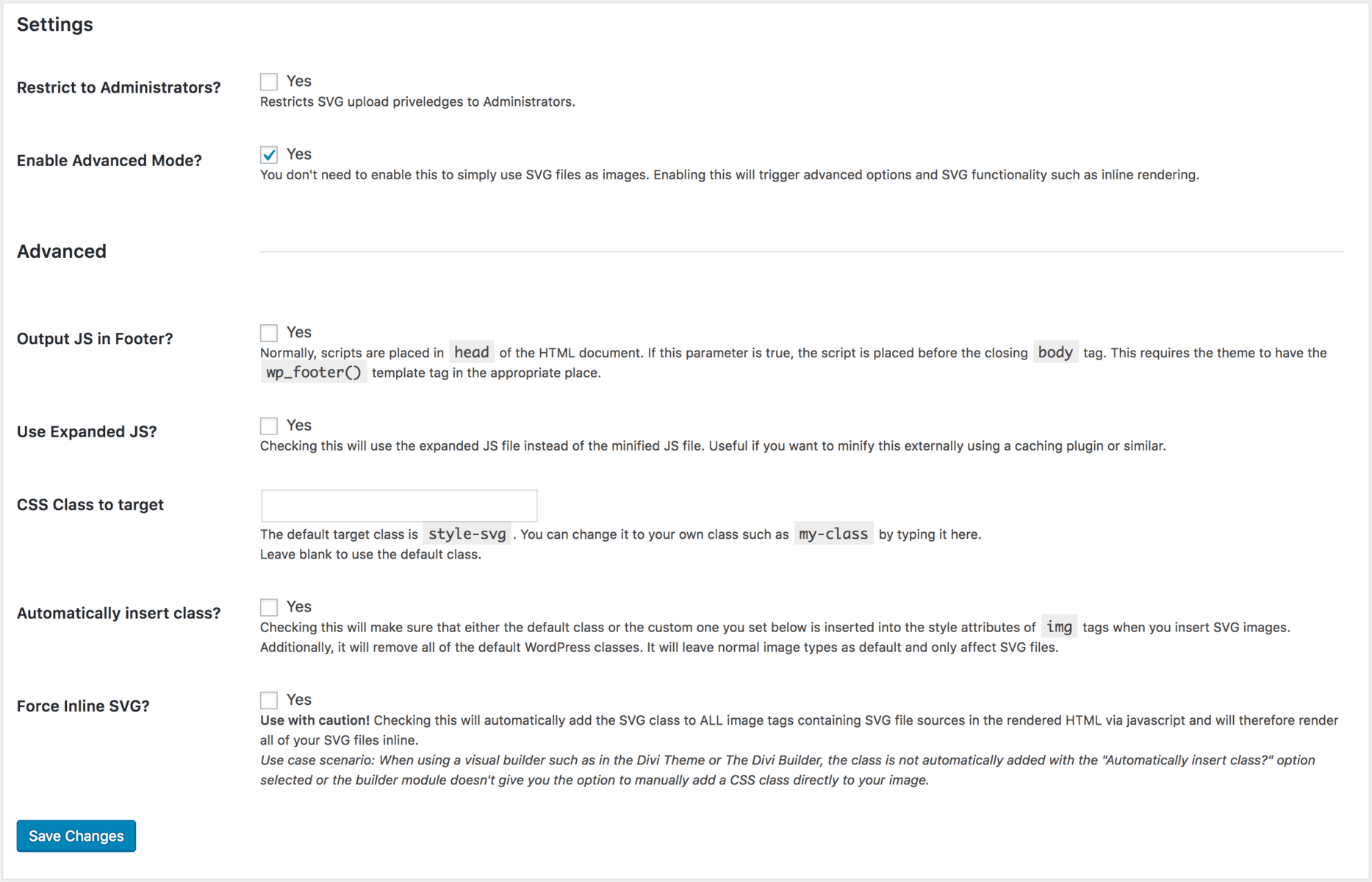
This plugin also sanitizes SVG files for added security.
Option 2: Add Code to functions.php (Advanced)
If you prefer not to use a plugin, you can manually enable SVG uploads:
function cc_mime_types($mimes) {
  $mimes['svg'] = 'image/svg+xml';
  return $mimes;
}
add_filter('upload_mimes', 'cc_mime_types');Note: Always back up your site before editing the functions.php file.
Know more: Optimal Screen Sizes for Web Design
Step 2: Upload SVG Icons to Media Library
- Go to Media ⟶ Add New.
- Upload your SVG files just like any other image.
- You can now access these files through Elementor’s media library.
Step 3: Insert SVG Icons in Elementor
There are two main ways to add SVG icons in Elementor, each with its own benefits.
Method 1: Using the Image Widget (Quick and Simple)
Open the page you want to edit in Elementor.
- Drag and drop the Image widget onto your layout.
- Click on the image box and select your SVG icon from the media library.
- Use the Style tab to adjust the size, spacing, and alignment.
This method is beginner-friendly and doesn’t require any code.
Method 2: Using the HTML Widget (More Control)
If you need advanced customization or interactivity, use this method:
- Drag and drop the HTML widget into your section.
- Open your SVG file in a text editor and copy the raw SVG code.
- Paste the code into the HTML widget.
This gives you complete control over styling and behavior.
III] Styling and Customizing SVG Icons
Here are two ways for styling and customizing SVG icons:
CSS Styling for SVG Icons
Whether you’re using the HTML widget or targeting SVGs site-wide, CSS gives you full control. Here’s an example of how to style SVG icons:
svg {
  width: 50px;
  height: 50px;
  fill: #000;
}
To apply this CSS:
- Go to the Advanced tab of the widget.
- Add the CSS in the Custom CSS section (available in Elementor Pro).
Inline Styling Example
For even more precise control, you can use inline styles directly in your SVG code:
<svg width="50" height="50" style="fill:#000;">
  <!-- SVG content here -->
</svg>
This is helpful when you want different icons to have different styles without writing external CSS.
IV] Bonus: Advanced Tips for Using SVG Icons in Elementor
Here are some tips to elevate your design using SVGs:
Use Inline SVG for Full Styling Control: By inserting the full SVG code into an HTML widget, you can target specific parts of the icon with CSS. This is ideal for animations, color changes, and dynamic effects.
Animate SVGs with CSS or JavaScript: You can add interactive animations. For example,
svg:hover {
  transform: scale(1.2);
  transition: transform 0.3s ease-in-out;
}
This adds a subtle hover zoom effect, drawing attention to your icon.
Add Accessibility Tags: Make your icons screen-reader friendly by including title and desc tags:
<svg role="img" aria-labelledby="title desc">
  <title id="title">Search Icon</title>
  <desc id="desc">Magnifying glass representing search</desc>
  <!-- SVG paths here -->
</svg>
This improves the overall accessibility of your site, especially for users relying on screen readers.
Optimize Your SVGs: Before uploading, use tools like SVGO or SVGOMG to remove unnecessary code. This reduces file size and improves performance.
V] Real-World Use Cases for SVG Icons in Elementor
Wondering where you can use SVG icons? Here are a few examples:
- Navigation Menus: Add crisp SVG icons to your menu items. They enhance the look and help users navigate more easily.
- Feature Sections: Use SVG icons to highlight services or features. Their sharp lines and flexibility make them ideal for section headings.
- Social Media Links: Instead of using generic icon sets, upload custom SVGs that match your brand’s style.
- Call-to-Action Buttons: Enhance your CTA buttons with SVG icons to draw more attention and encourage clicks.
Learn more: Top Sustainable Web Design Trends in Digital Design
VI] How to Create SVG Icons for WordPress?
Creating SVG icons for WordPress involves several steps, from designing the icon to ensuring it’s optimized for web use. Here’s a step-by-step guide:
Design Your Icon
First, you need to design your SVG icon. You can create SVG icons using vector graphic design software like:
- Adobe Illustrator
- Inkscape (free)
- Figma (online, collaborative)
- Sketch (for macOS)
When designing the icon, make sure to keep the file simple and minimalistic for optimal performance on your website.
Export as SVG
Once you’ve designed your icon, export it as an SVG file from your design software. Here’s how you can do this in common tools:
- In Adobe Illustrator: File ⟶ Export ⟶ Export As, then choose SVG as the file format.
- In Inkscape: File ⟶ Save As ⟶ Choose SVG format.
- In Figma: Right-click the icon, select Export, and choose SVG as the file type.
Optimize the SVG File
After exporting the SVG file, it’s important to optimize it. SVG files can contain unnecessary metadata and extra code, making the file size larger than needed. You can use tools like:
- SVGO: An SVG optimization tool that reduces file size by cleaning up unnecessary code.
- SVGOMG: A user-friendly, web-based version of SVGO.
- CompressSVG: A simple tool to reduce SVG file size.
Optimizing SVG files will ensure they load quickly and don’t affect the performance of your WordPress site.
Add Accessibility Information (Optional but Recommended)
For better accessibility, include title and desc tags inside the SVG code. This allows screen readers to interpret the icon. Here’s an example of how to include these tags:
<svg width="50" height="50" role="img" aria-labelledby="title desc">
  <title id="title">Search Icon</title>
  <desc id="desc">A magnifying glass representing a search icon</desc>
  <!-- SVG paths here -->
</svg>
Upload the SVG to WordPress
To use your SVG icon on your WordPress site, you’ll need to upload it to the media library. Since WordPress doesn’t allow SVG uploads by default, follow these steps:
- Install the SVG Support plugin or add a code snippet to your functions.php file to enable SVG uploads in WordPress.
- Once the SVG upload is enabled, go to Media ⟶ Add New and upload your SVG file.
Use the SVG Icon in WordPress
Now that your SVG icon is uploaded, you can use it in Elementor or other parts of your site. To use it in Elementor, as mentioned above, add:
- An Image widget and select your SVG icon from the media library.
- Alternatively, for more styling control, use the HTML widget to directly insert the SVG code.
Final Thoughts
Using SVG icons in Elementor isn’t just about design; it’s also about performance, accessibility, and flexibility. These lightweight, scalable images help your website look sharp and load fast across all devices.
By enabling SVG uploads, inserting them with Elementor’s Image or HTML widgets, and customizing them using CSS, you can take your website design to the next level. Whether you’re building a blog, portfolio, or business website, SVG icons offer a clean and modern way to present content.
Remember: simplicity, speed, and style matter. SVG icons bring all three to your web design toolkit.
FAQs About Using SVG Icons in Elementor
How do I add SVG icons to Elementor?
To add your own SVG icons to Elementor, first enable SVG uploads in WordPress using a plugin like “SVG Support” or by adding a code snippet to your theme’s functions.php file. Then, upload your SVG file to the media library and insert it using the Image or HTML widget in Elementor.
How do I use SVG as an icon?
You can use an SVG as an icon by uploading the SVG file to your media library and placing it on your page using the Image widget. Alternatively, for more styling control, copy the SVG code into an HTML widget and style it using CSS.
How do I use custom SVG icons in Elementor?
To use custom SVG icons in Elementor, you can either upload your own SVG files or use the “Custom Icons” feature in Elementor Pro. This feature lets you import icon sets via the Custom Icons interface under Elementor ⟶ Custom Icons in your WordPress dashboard.
How do I import an icon in Elementor?
You can import an icon in Elementor by going to Elementor ⟶ Custom Icons (available in Elementor Pro), clicking Add New, and uploading an icon set in SVG format. Once imported, the icons become available in the Elementor icon library for use across widgets.

