


WordPress website security policies are the backbone of a safe and resilient online presence. One weak setting can expose your site to hackers, data breaches, and costly downtime.
If you rely on WordPress to run your business, you cannot afford guesswork. A clear security policy defines who has access, how data is protected, and what steps to take in the event of a threat. This guide breaks down everything you need to build strong, practical safeguards that protect your site, your users, and your reputation.
TL;DR: WordPress Website Security Policies
Not enough time to read the full guide right now? Here is what you need to know:
- A WordPress website security policy is a documented, repeatable system covering hosting, logins, user roles, updates, firewalls, and backups.
- Outdated plugins are behind the majority of WordPress hacks, and brute-force attacks on login pages occur millions of times a day, so your policy needs to address both proactively.
- Two-factor authentication, login attempt limits, and the principle of least privilege for user roles are three of the highest-impact steps you can take with minimal technical effort.
- Even a fully secured WordPress site needs regular backups stored offsite, because recovery speed is what determines whether a breach is a minor setback or a full disaster.
What is a WordPress Website Security Policy and Why Does it Actually Matter?
A WordPress website security policy is a documented approach that defines how your WordPress website will be protected, who is responsible for maintaining that protection, and what steps to follow when something goes wrong.
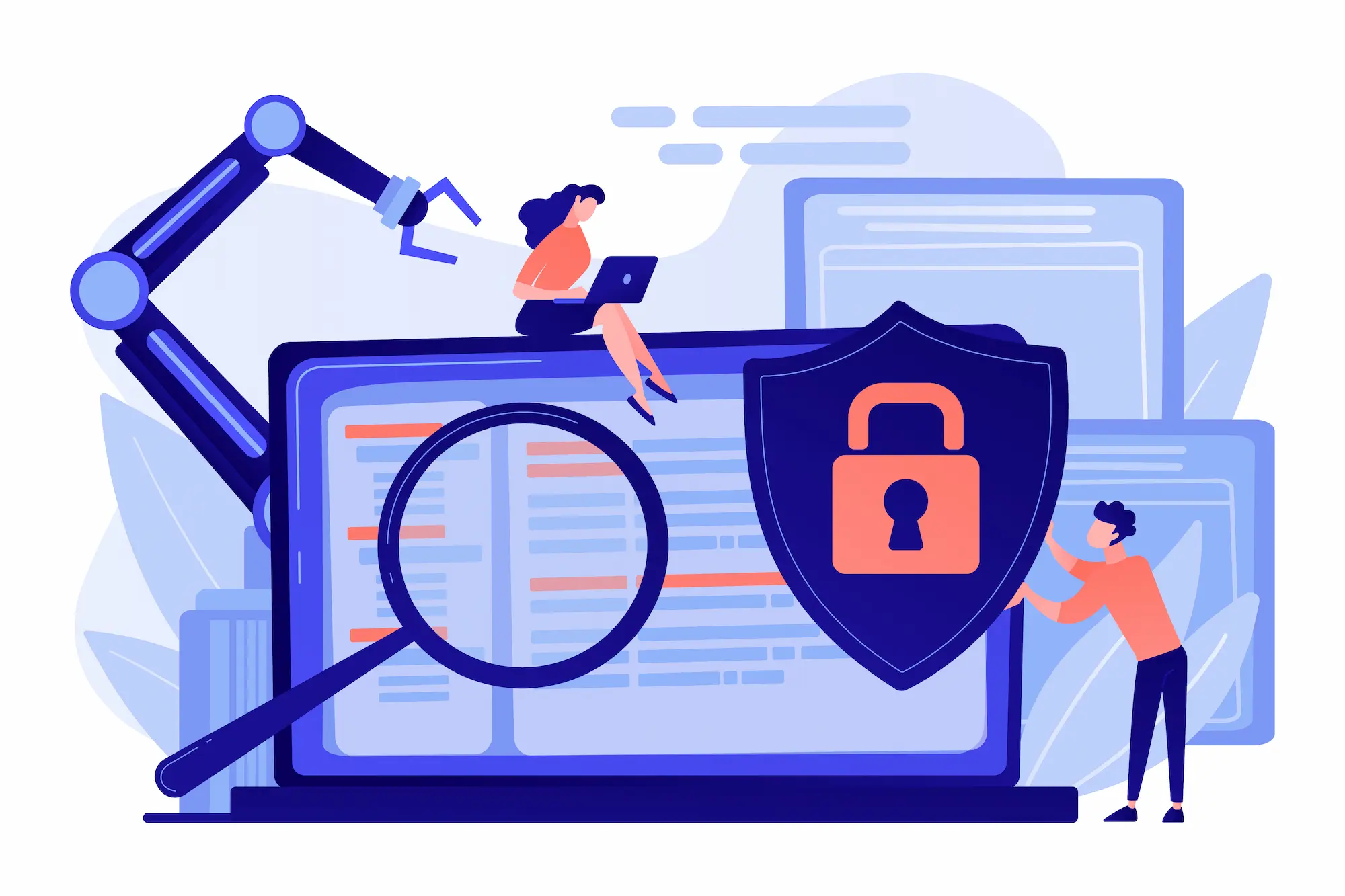
Think of it as the difference between knowing what to do in a fire versus trying to figure it out while the smoke fills the room.
Why WordPress Security Policies Matter?
Most website security failures are not caused by one dramatic event. They happen because small weaknesses stack up over time. Outdated plugins introduce security vulnerabilities. Weak file permissions expose WordPress core files.
Excessive login attempts open the door to brute force attacks. A missing Web Application Firewall allows malicious traffic to reach your web server unchecked. A proper policy connects all of these risks into one coordinated system.
Without a defined security policy, most site owners rely entirely on a single security plugin and hope for the best. That approach is reactive. A real policy is proactive.
It outlines how to block malicious traffic, reduce the attack surface, monitor login activity, secure the WordPress installation, and respond quickly to security breaches.
Secure Your WordPress Site Before Attackers Strike
Get expert protection with 24/7 monitoring, malware removal, firewall defense, and proactive updates tailored to your website.
Core Components of a Strong WordPress Website Security Policy
A strong security policy is built on multiple coordinated layers, not a single plugin or setting. The following components work together to reduce risk, strengthen defenses, and ensure long-term protection for your WordPress site.
Your Hosting Environment is the Foundation, Not an Afterthought
Before you touch a single plugin or password setting, look at where your WordPress website actually lives. Your hosting environment is the first and most important layer of your site’s security posture. Everything you build on top of it is only as strong as the foundation beneath it.
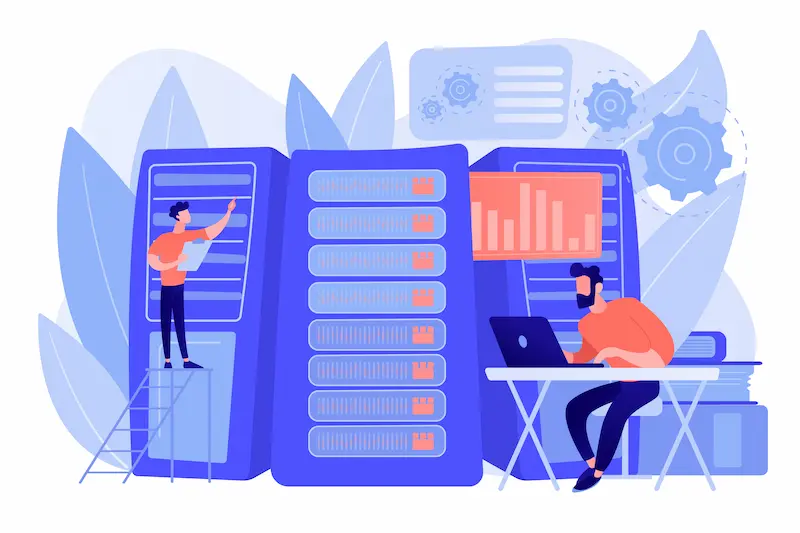
If your site runs on a poorly secured server, even the best WordPress security plugins cannot fully protect it. Attackers frequently target weak hosting environments because compromising the same server can expose multiple sites at once.
Choosing a Host That Takes Security Seriously
Not all hosting providers treat security the same way. Some shared environments place hundreds of sites on the same server with minimal isolation. When one site is compromised, attackers can sometimes pivot to other sites on the same server.
When evaluating a host for security, look for:
- Server-level firewalls and intrusion detection
- Automatic malware scanning and removal
- DDoS protection at the network level
- Isolated container environments per site
- Proactive patching of server software and PHP versions
- Monitoring systems that block malicious traffic before it reaches WordPress
Managed WordPress hosts like Kinsta and WP Engine implement server-level protections that stop many attacks before WordPress even loads.
For agencies managing multiple client sites, better hosting reduces recurring security incidents and support workload. It is one of the highest-leverage investments in your entire security policy.
SSL Certificates and HTTPS Are the Minimum Bar, Not the Goal
If your WordPress site is still serving pages over plain HTTP in 2026, you are behind. An SSL certificate encrypts the connection between your server and your visitors, preventing attackers from intercepting data in transit.
Google has been penalizing non-HTTPS sites in search rankings for years, and modern browsers actively warn users before they load an unencrypted page.
Getting SSL right on WordPress means more than just installing a certificate. You need to enforce HTTPS across your entire site, including the admin area, and resolve mixed content issues where some resources still load over HTTP.
Plugins like Really Simple SSL handle this automatically. Treat SSL as your starting point, not your destination.
Building a Login Security Policy That Actually Holds Up
Your login page is the most targeted entry point on your WordPress site. Wordfence blocks 65 million brute-force attacks every day. A login security policy addresses this systematically rather than relying on your current password holding up under pressure.
Enforce Strong Passwords Across Every Account
On a single-author blog, a weak password is a personal risk. On a WordPress website with multiple users, one weak password becomes everyone’s problem.
Your security policy must require strong passwords for all user accounts, regardless of role. That includes administrators, editors, authors, contributors, and even subscribers. Plugins like Password Policy Manager for WordPress allow you to enforce:
- Minimum password length of 12 characters or more
- Uppercase, lowercase, numbers, and symbols
- Blocking commonly used and previously breached passwords
- Mandatory password changes on a schedule
WordPress displays a strength indicator, but it does not enforce strong passwords by default. Enforcing these rules closes one of the most common doors used in real-world security breaches.
Make Two-Factor Authentication Mandatory
Passwords alone are no longer sufficient protection. Credentials get stolen through phishing, malware, and data leaks from unrelated platforms. Two-factor authentication adds a second verification step that prevents attackers from logging in even if they know the password.

Your policy should require two-factor authentication at a minimum for Administrator and Editor user roles, and ideally for any account that can publish content, install plugins, or upload media. Plugins like WP 2FA or Google Authenticator make setup simple.
Once enabled, users must verify their identity using a mobile app or email code in addition to their password. This single step blocks a massive percentage of successful WordPress attacks.
Limit Login Attempts and Add CAPTCHA
Brute force attacks rely on unlimited guesses. Limiting login attempts stops this technique at the source. A practical baseline policy looks like this:
- Lock an account after 5 failed login attempts within 10 minutes
- Apply a lockout period of at least 30 minutes
- Add CAPTCHA after repeated failures
- Block IP addresses flagged for malicious traffic
Most WordPress security plugins include these controls. When combined with a website firewall, malicious traffic is often blocked before it even reaches the login page, preserving server resources and reducing load.
Change the Default Login URL
Every WordPress installation uses /wp-admin and /wp-login.php by default. Every attack script on the internet knows this.
Changing your login URL to a custom path immediately reduces automated attack volume. Plugins like WPS Hide Login let you change the URL without editing core files or directly editing the htaccess file. Your security policy should document the custom login URL internally so authorized users can access it without confusion.
Lock Down User Roles and Access Capabilities
Login security is not only about authentication. It is also about what users can access once logged in. WordPress user roles define what actions each user account can perform. Over-permissioning is one of the most common internal security failures.
Your policy should clearly define:
- Administrators for the website owner and trusted senior developers only
- Editors for content managers who oversee publishing
- Authors for users who publish their own content
- Contributors for draft-only access
- Subscribers for profile access only
Apply the principle of least privilege. Give users only the permissions they need to do their job. Nothing more.
This limits damage if an account is compromised and protects sensitive data and WordPress core files from unnecessary exposure.
Secure File Permissions and Upload Behavior
User access also extends to what files they can interact with. Your security policy should enforce proper permissions on:
- wp-config.php
- WordPress core files
- Plugin and theme directories
- Uploads folder
Incorrect file permissions allow malicious scripts to be written or executed. A secure environment ensures PHP files cannot be uploaded through media uploads and prevents execution in directories where it should never occur. Additionally, restrict who can upload media and install plugins. These capabilities should be reserved for trusted roles only.
Add Security Headers at the Server Level
Security headers instruct browsers how to handle content and block common exploit techniques such as cross-site scripting and clickjacking. Your hosting provider or web server configuration should include headers such as:
- Content Security Policy
- X-Frame-Options
- X-XSS-Protection
- X-Content-Type-Options
- Strict-Transport-Security
These headers provide an additional layer of defense that operates independently of WordPress itself.
Train Users to Recognize Phishing Attempts
Even the strongest technical controls can be undermined by human error. Your policy should include basic training for anyone with user accounts:
- Never click login links from emails
- Always verify URLs before entering credentials
- Use password managers instead of browser autofill
- Report suspicious messages immediately
Phishing remains one of the most effective ways attackers gain access to WordPress websites. Awareness significantly lowers risk.
User Roles and Permission Policies That Prevent Inside Threats
One of the most overlooked parts of any WordPress website security policy is what happens inside your own team. External hackers get most of the attention, but compromised accounts and misassigned permissions create just as much risk from within.
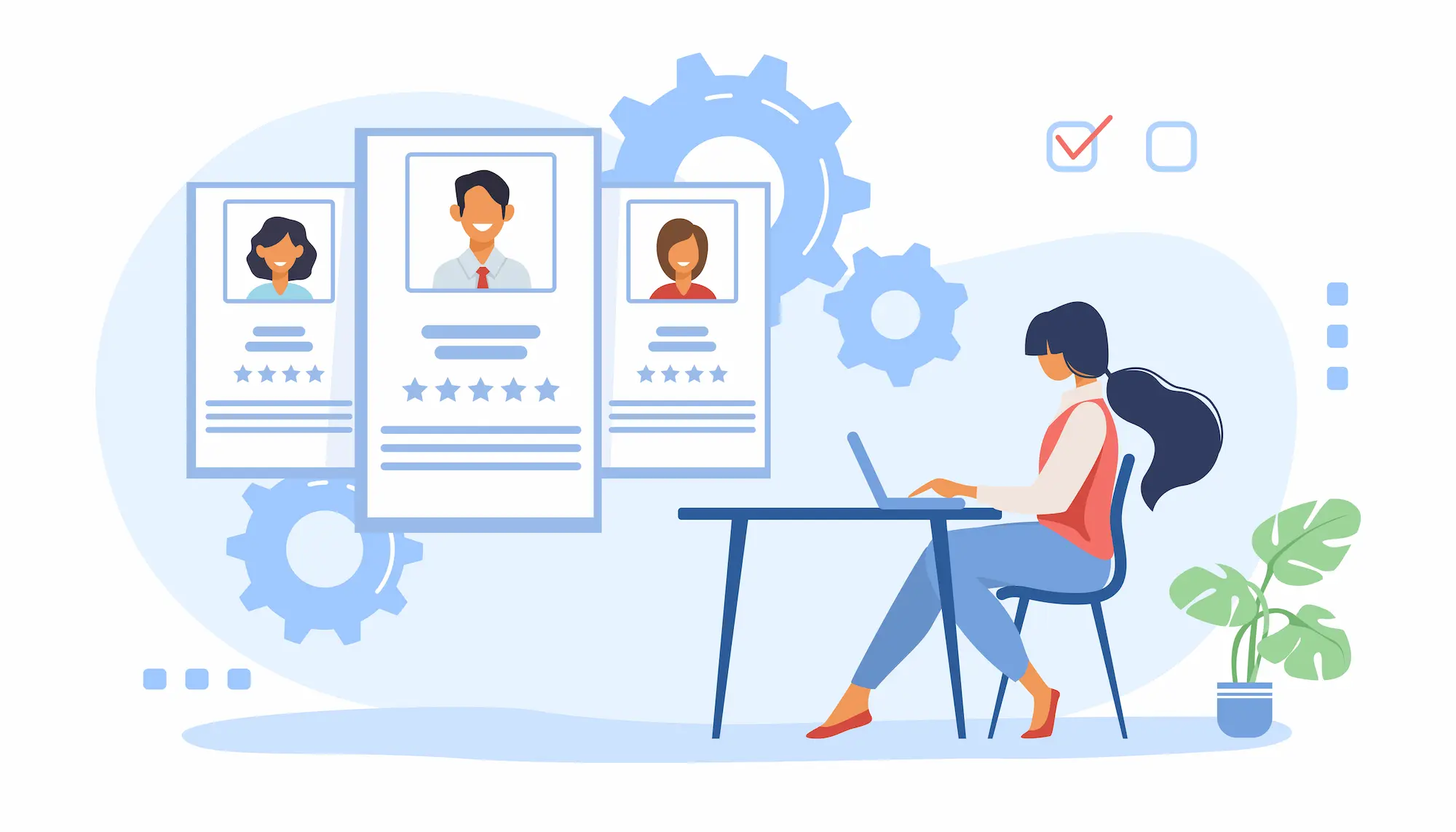
Map Every User to the Right Role
WordPress ships with five default user roles, each carrying different capabilities. Here is how to think about them in a security context:
- Administrator: Full site control. Reserve for site owners and trusted senior developers only.
- Editor: Can publish and manage all posts. Assign to content managers who need to oversee others.
- Author: Can publish their own posts. Right for regular contributors who do not need editorial oversight.
- Contributor: Can write drafts but cannot publish. Use for guest writers or new team members.
- Subscriber: Profile access only. For members or registered users with no content role.
Most security problems related to user roles come from over-permissioning. A freelance writer does not need Editor access. A developer fixing one plugin issue does not need permanent admin credentials. Set the right role before access is ever granted, not after.
Apply the Principle of Least Privilege
The principle of least privilege means granting each user only the minimum access needed to do their job. When too many people hold Administrator access, each extra account becomes an attack surface. Agencies, contractors, and third-party integrators should receive time-limited credentials that are revoked upon a project’s completion.
Audit and Remove Inactive Accounts Regularly
Ghost accounts are a quiet but serious vulnerability. Former employees, old developers, and inactive clients all represent open doors if their credentials are compromised elsewhere. Your security policy should include monthly or quarterly audits of all WordPress users and the removal of any accounts that no longer need access.
Updates Are a Security Policy, Not a Maintenance Task
Outdated plugins are the single largest attack vector on WordPress. Most hacks do not exploit zero-day vulnerabilities or sophisticated techniques. They target known weaknesses in software that was not updated for weeks or months after the fix was already available.
Why You Cannot Afford to Delay Updates?
When a vulnerability is disclosed publicly, attack scripts targeting it appear within hours. If your site is running an outdated version of a plugin with a known CVE, it is only a matter of time before it is found. This is not theoretical. The majority of WordPress compromises involve outdated plugins and themes, many of which had available patches long before the attack.
Read More: How to Update WordPress Plugins Safely and Easily
How to Manage Updates Without Breaking Your Site?
Updating without a process can break things, especially on complex or heavily customized sites. Build a safe update process into your security policy:
- Use a staging environment to test updates before pushing live
- Set a weekly schedule for reviewing and applying updates
- Enable automatic updates for minor releases and security patches
- Remove any plugins or themes that are no longer actively maintained
Delete Unused Plugins and Themes Immediately
A deactivated plugin is not a safe plugin. Its files still live on your server, and if those files contain vulnerabilities, they can still be exploited even when the plugin is switched off. Your policy should be simple: if you are not using it, delete it. This applies to themes too, including the default WordPress themes you never activated.
WordPress Firewall and Malware Scanning Policies
A Web Application Firewall sits between your site and incoming traffic, filtering out malicious requests before they ever reach WordPress. This is one of the most effective preventative layers in any security policy.
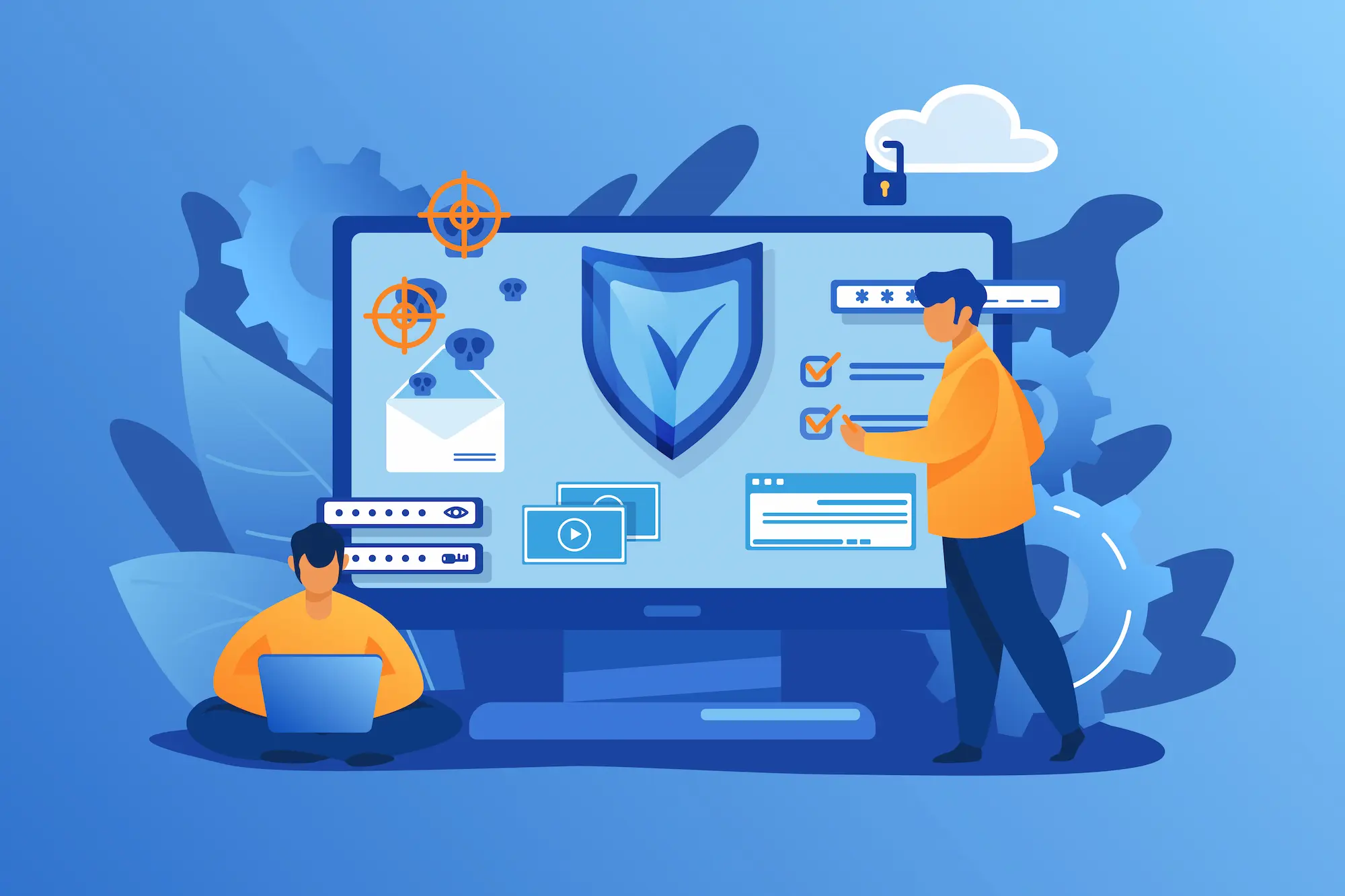
DNS-Level vs Plugin-Level Firewalls
There are two main approaches to WordPress firewalls, and they work at different points in the traffic flow. DNS-level firewalls like Cloudflare intercept traffic before it reaches your server entirely. This means your server is never even hit by the attack, which is more efficient and harder to bypass.
Plugin-level firewalls, such as Wordfence, operate within WordPress itself. They are easier to set up and still highly effective, but they load after WordPress has already processed the request.
For most sites, a plugin-level firewall is a solid starting point. For high-traffic or high-value sites, combining Cloudflare at the DNS level with Wordfence at the application level gives you layered protection.
Run Malware Scans on a Schedule
Malware does not always announce itself. Attackers often prefer quiet access, slowly modifying files or collecting data without triggering obvious alerts. Regular malware scanning catches this before it escalates.
Your policy should include:
- Automated daily or weekly scans using a plugin like Wordfence
- Alerts are sent to a monitored email address when anything is flagged
- A clear process for who reviews and acts on scan results
- Quarterly manual reviews of your file system for unexpected changes
Backup Policies: Your Last Line of Defense
Even the most hardened WordPress site can be compromised. A reliable backup policy is what separates a recoverable incident from a catastrophic one.
The 3-2-1 Backup Rule Applied to WordPress
The 3-2-1 rule is a proven framework: keep three copies of your data, on two different storage types, with one copy stored offsite.
For WordPress, that looks like a local server backup, a cloud backup to somewhere like Amazon S3 or Google Drive, and a third copy held by your host or a separate backup service.
Plugins like BlogVault make this straightforward to implement and automate. The important thing is that at least one backup is stored completely separately from your hosting account, so that if your host is compromised, your backups are not.
How Often Should You Back Up?
Backup frequency should match how often your site changes:
- eCommerce sites with daily orders, back up every 24 hours or more frequently
- Active blogs with regular publishing, daily backups
- Brochures or informational sites with infrequent updates and weekly backups are acceptable
- After any major update or configuration change, run a manual backup immediately
Test your backups regularly. A backup you have never restored from is a backup you do not actually trust.
Conclusion
A WordPress website security policy is not something you set up once and forget. It is a living document and an ongoing practice that covers your hosting foundation, login protection, user access, software maintenance, firewall setup, malware scanning, and backup systems.
Each layer on its own reduces your risk. Together, they create a posture that is genuinely difficult to break through. Start by auditing where you stand today against the areas covered in this guide. Identify the gaps, prioritize the highest-risk ones, and build your policy from there.
WordPress Website Security Policies FAQs
What are WordPress website security policies?
They define the security measures that protect your entire WordPress installation. These policies reduce security threats, prevent malicious code, and protect sensitive user data. Without clear security best practices, your site faces serious security concerns and cyber threats.
How do I protect my site from cross-site scripting XSS and brute force protection issues?
Use strong firewall rules and enable brute force protection. Keep plugins and themes up to date. Limit login attempts and secure login credentials. These steps block malicious actors and reduce potential security risks like cross-site scripting XSS and service attacks.
Why are regular security audits important?
Regular security audits help detect security risks before they escalate. They uncover malicious code, weak default configuration settings, and unauthorized users. Security audits also ensure your security features are configured correctly and working as expected.
How can I secure administrator accounts and other users?
Restrict execute access and assign roles carefully. Do not let every user publish posts or access sensitive information. Protect each administrator account with strong passwords and two-factor authentication. This limits damage if login credentials are compromised.
How do I secure multiple websites under one setup?
Apply consistent security measures across multiple websites. Monitor the entire WordPress installation for unusual activity. Keep software up to date and review firewall rules often. This protects your online identity and reduces overall security risk.

