


If you’re a designer, WordPress developer, or creative team member, chances are you’ve worked with Figma. It’s one of the most popular design and prototyping tools, known for its ease of use, collaborative features, and cloud-based workflow. But what if you want to share your Figma designs on your website? Can you embed Figma into WordPress? The answer is yes, and it’s easier than you might think.
Using different methods, this guide will teach you how to embed Figma into your WordPress site. Whether you’re showcasing a design portfolio, presenting documentation, or collaborating with clients, embedding Figma can enhance user experience and smooth your workflow.
What is Figma and Why Embed it in WordPress?
Figma is a browser-based design tool for UI/UX design, wireframing, prototyping, and collaboration. Unlike traditional design software, Figma allows multiple users to work on the same file in real time, making it ideal for teams.
Embedding Figma files into WordPress is especially useful in the following scenarios:
- Showcasing design previews on a portfolio website
- Sharing design documentation with clients or stakeholders
- Collaborating on designs by allowing others to view embedded prototypes
- Displaying UI/UX projects on blog posts or landing pages
The best part? You don’t need advanced coding skills to embed Figma into WordPress. All it takes is a few clicks and a simple iframe code.
Turn Your Figma Designs into a High-Performing WordPress Site
Our Website Redesign Services help you go beyond simple embeds, ensuring your designs are fully optimized, responsive, and built to drive conversions.
How to Get Your Figma Embed Code?
Here’s a quick step-by-step guide to get the embed code from your Figma file:
- Open your Figma file and go to the file you want to embed.
- Click the Share button. You’ll find it in the top-right corner.
- Adjust sharing settings and ensure it’s set to “Anyone with the link can view.”
- Click the Embed tab. It is below the sharing options.
- Customize the size to set your preferred width and height (optional).
- Copy the iframe code. This is what you’ll paste into WordPress.
That’s it. Now, you’re ready to embed the design wherever you want.
Ultimate Guide: Custom WordPress Development Services
Different Methods to Embed Figma into WordPress
Here are the top three methods that you can use to embed your Figma files into WordPress websites.
Method 1: Embed Figma Using the WordPress Block Editor (Gutenberg)
If you’re using WordPress version 5.0 or later, you’re likely working with the Gutenberg editor, also known as the Block Editor. This modern editing interface makes it incredibly simple to embed custom content like a Figma design directly into your page or post using built-in blocks.
Here’s how to do it step by step:
- Open the page or post where you want the Figma design to appear. You can create a new one or edit an existing one.
- Click the “+” button to add a new block. This button appears on the left side of your content area or at the editor’s top.
- Search for the “Custom HTML” block in the block search bar. This block allows you to paste raw HTML code, which is exactly what you need for a Figma embed.
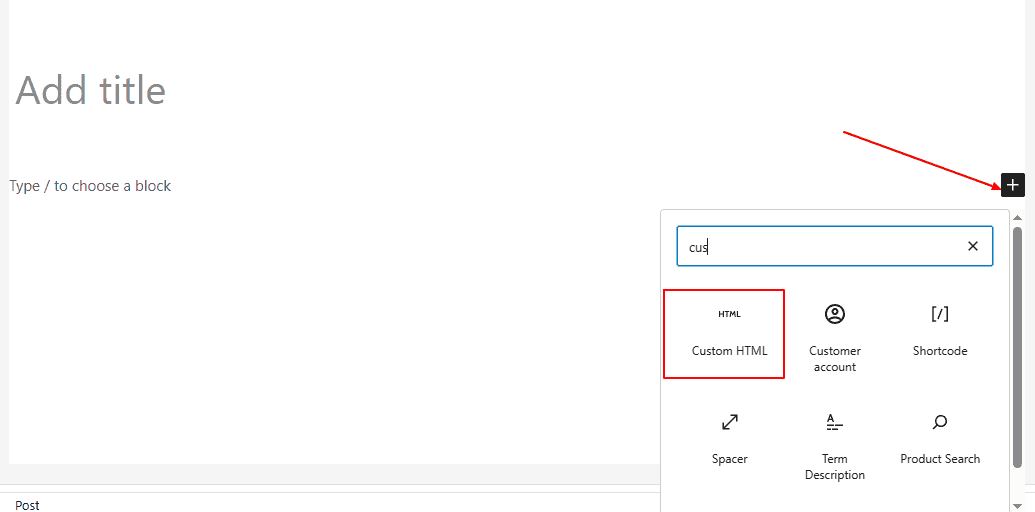
- Paste your Figma iframe code into the Custom HTML block. You’ll have copied this from your Figma file under the Share ⟶ Embed tab.
- Click “Preview” within the block to see how your embedded design will appear on the page. If it loads correctly and looks good, you’re all set.
- Publish or update the page to make the changes live on your site.
Why This Method Works Well
Using the Custom HTML block in Gutenberg is one of the most reliable ways to embed Figma content. It doesn’t require any extra plugins, and it gives you complete control over the placement and appearance of your design.
Plus, since the Gutenberg editor supports responsive layouts, you can easily pair your embed with text, images, or columns to create a more dynamic design.
You can wrap the iframe in a responsive container or add custom CSS classes later to center it or control its size on mobile devices. This method is perfect for designers, bloggers, and marketers who want a quick and clean way to share interactive design previews directly in their content.
Method 2: Embed Figma Using the Classic Editor
If you’re using the Classic Editor plugin or an older version of WordPress, embedding a Figma file is still very straightforward. While this editor doesn’t use blocks like Gutenberg, it offers complete control through its Text tab, which accepts raw HTML, including iframe code.
Here’s how to embed your Figma file step by step:
- Open the post or page where you want the design to appear. You can create a new one or edit an existing one.
- At the top of the WordPress editor, switch from the Visual tab to the Text tab. This is crucial as only the Text mode allows you to paste iframe code without WordPress interfering.
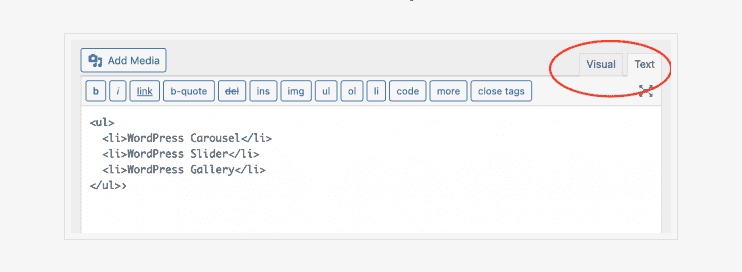
- Paste the Figma iframe embed code directly into the spot where you want it to display. You can place it before, after, or between your content, like regular text or HTML.
- Save the changes and preview the page to ensure the embedded file appears correctly. If everything works as expected, publish or update your content.
Note: Some older WordPress themes or security settings may automatically strip out iframe code when saving. If your Figma design disappears after saving, it’s likely due to this restriction.
If the iframe is not rendering, consider:
- Switching to the Block Editor (which handles embeds more smoothly).
- Using a trusted WordPress plugin designed for iframes (like “Advanced iFrame”).
- Temporarily disabling conflicting plugins or security features that block iframes.
Once embedded, always check your design on both desktop and mobile views. Some iframes may need minor styling adjustments for better responsiveness.
Why This Method Might Be Right for You
The Classic Editor is still preferred by many WordPress users who like a simpler, non-block-based writing experience. If you’re already familiar with basic HTML or working on a theme that’s not block-friendly, this method gives you complete control over how and where your Figma design is displayed.
It’s a lightweight solution requiring no plugins; just ensure your theme or web hosting setup allows iframe embeds.
Optional Method: Use a WordPress Plugin
While manually embedding Figma files using HTML works well for most users, there are times when you might want more control over how your embedded content behaves. This is especially important if you manage a larger site, work with multiple designs, or aim for advanced layout customizations.
In such cases, a WordPress plugin can offer more flexibility, better responsiveness, and additional features that improve the overall user experience. Here are some recommended plugins for Figma embeds:
Advanced iFrame
This plugin extends the default capabilities of standard iframe embeds.

With Advanced iFrame, you can:
- Automatically resize the iframe to match the content height
- Control scrollbars, zoom levels, and borders
- Enable lazy loading for better page performance
- Restrict display based on user roles or conditions
It’s ideal if you’re embedding interactive prototypes or need your iframe to adapt dynamically across devices.
Embed Any Document
While not built explicitly for Figma, this plugin works great when sharing design-related files such as PDFs, presentations, or specs exported from Figma. It:

- It supports multiple file types (PDF, DOCX, PPTX, etc.).
- Offers responsive document viewers without needing external services
- Integrates easily into posts, pages, and widgets via shortcode
This plugin is handy if you complement your Figma designs with written documentation.
When Should You Use a Plugin?
Consider using a plugin to embed Figma files in WordPress when:
- You need responsive scaling: Some themes may not handle iframe responsiveness out of the box. Plugins can help automatically make your embedded designs look good on all screen sizes.
- You want finer control: For example, disabling scrollbars, adjusting zoom settings, or dynamically resizing the embed based on viewport size.
- You’re embedding multiple Figma files: If you frequently include designs across various posts or pages, a plugin helps you maintain consistent styles without editing raw code every time.
- Security or compatibility issues arise: Some WordPress setups restrict iframe usage due to security settings. Plugins often include built-in solutions to handle embeds safely.
Know more: How to Integrate ChatGPT into WordPress
Why Would Someone Choose Our Services If They Can Use a Plugin?
While plugins can make it easy to drop a Figma URL into a new Figma embed block or use an embed API to display a rendered Figma file embed, they come with limitations. A plugin might help you embed or even automatically convert a design, but it cannot guarantee the quality, customization, or long-term reliability that a professional service can provide.

At WPServices, we go beyond plugins to help you convert Figma designs into high-quality websites that are responsive, SEO-friendly, and tailored to your goals. Instead of depending on generic templates or one-click exports, our team ensures that every detail, from top-level frames to sidebar layouts, margins, and typography, is handled carefully.
Here is why many teams choose WPServices over plugins alone:
- Custom Conversion Process: Instead of a basic rendered embed, we carefully convert Figma design files into fully functional WordPress layouts. This gives you more control over block settings and styling without altering margins manually every time.
- Scalability and Reliability: Plugins can break with updates or theme conflicts. With WPServices, your conversion process is stable, future-proof, and aligned with best practices.
- Personalization: Unlike plugins that apply one-size-fits-all templates, our experts help you easily convert designs into WordPress while ensuring branding consistency across every new page and next screen of your website.
- Professional Quality: We do not just embed a prototype. We create high-quality websites optimized for performance, accessibility, and SEO, something a simple plugin cannot achieve.
In short, while plugins are great for quick embeds or previews, WPServices is the right choice to move beyond prototypes and build a polished, production-ready website.
Manual Rebuild vs Automated Export: Choosing the Right Workflow
When deciding how to bring Figma into WordPress, it is essential to ask whether you should stick to an embedded prototype or convert Figma into a fully functional page. Both approaches have advantages; the right choice depends on your project goals.
A manual rebuild gives you complete control. You can use page builders like Elementor or Gutenberg to recreate your design using sections, columns, and widgets. By doing so, you can match your Figma design closely, apply custom block settings, and optimize for SEO. Rebuilding manually also makes integrating dynamic elements such as templates, blog posts, or eCommerce functionality easier, which a simple rendered Figma file embed cannot achieve.
On the other hand, automated export tools and plugins allow you to convert a valid URL from Figma into WordPress layouts automatically. These tools can map a new Figma embed block or embed API to your WordPress editor, letting you move from design to website with minimal manual effort. Automated exports are the quickest way to create high-quality websites directly from your designs for straightforward projects or when time is limited.
A good way to decide is to consider the next screen of your workflow. Embedding works fine if your embedded prototype is only for presentation or client review. But converting your Figma file into a WordPress layout is often the better choice if you plan to scale, reuse templates, or build a fully interactive site.
Embedding vs Integrating Figma Designs: When to Use Which Approach
There is a key difference between embedding and integrating Figma designs into WordPress. Understanding this will help you choose the right approach for your website.
Embedding involves adding a Figma URL into an embed block or using the embed API to display a rendered Figma file inside your WordPress content. This method is best for quickly showcasing prototypes, mockups, or presentations on a new page or blog post.
You simply paste the code, adjust block settings like width or height, and publish. Embeds are perfect for sharing your design with stakeholders, allowing them to view the next screen or new line of a prototype without needing a Figma account.
Integrating, on the other hand, means using plugins, page builders, or a theme development workflow to convert Figma designs into actual WordPress layouts. Instead of just displaying an iframe, you are building native WordPress templates that can interact with your content, menus, and sidebar. This method is ideal when you want to create high-quality websites that are responsive, SEO-friendly, and dynamic.
In short, if your goal is quick visualization, go with an embed. If you want full functionality and control, integration is the more brilliant move. For many teams, a mix of both works best: embed prototypes for client presentations while using integration to launch production-ready designs.
Best Practices for Embedding Figma in WordPress
To ensure your embedded content performs well and looks good across devices, keep these tips in mind:
- Make it responsive: Use CSS or a container with
max-width: 100%to make sure the iframe scales on mobile.
- Use embeds for previews: Don’t expect real-time design updates. Figma embeds are best for snapshots or demos.
- Avoid clutter: Embedding multiple Figma files on a single page can slow down loading. So, keep it minimal.
- Provide context: If embedding a prototype or design mockup, include a short explanation or caption for accessibility and clarity.
Also read: How to Convert an HTML File to a WordPress Theme
Troubleshooting Common Figma to WordPress Embed Issues
Even though embedding a Figma design into WordPress is usually simple, you might occasionally run into issues where the file doesn’t display correctly or appears broken on your page. Let’s walk through some of the most common problems and how to solve them:
The file is Not Shared Correctly
One of the most frequent causes of a broken embed is incorrect sharing permissions on the Figma file.
What to check:
- Open the Figma file and click the Share button in the top-right corner.
- Under the sharing settings, ensure that “Anyone with the link can view” is selected.
- Avoid using restricted or team-only access links, as WordPress cannot render private Figma content via iframe.
Update the sharing settings and refresh your WordPress page. Once the permissions are set, the iframe should load the content correctly.
Browser Restrictions or Extensions
Modern browsers have built-in security features that sometimes block iframe content, especially from an external domain like Figma. Additionally, browser extensions like ad blockers or privacy tools may prevent the iframe from loading.
What to do:
- Try opening your page in incognito or private mode to bypass extensions.
- Test the embed on a different browser or device.
- Disable browser extensions temporarily to isolate the issue.
If the iframe loads fine in incognito mode, the issue is likely related to an extension or browser setting. You can advise users accordingly or use a plugin that handles embeds more gracefully.
Theme or Plugin Conflicts
Some WordPress themes or plugins may interfere with iframes. This could be due to security settings, code sanitization, or simply incompatible scripts running in the background.
Steps to troubleshoot:
- Temporarily deactivate all plugins and check if the Figma embed starts working.
- Switch to a default WordPress theme like Twenty Twenty-Four.
- Gradually reactivate plugins one by one to identify which one causes the conflict.
Once you pinpoint the conflicting plugin or theme, look for an update, an alternative plugin, or contact the developer for a workaround. Sometimes, switching to a more modern theme or a dedicated iframe plugin can resolve the issue entirely.
iFrame Not Rendering in the WordPress Editor
Sometimes, the iframe won’t appear in the editor, or it gets stripped out after saving the post.
What might be happening:
- The iframe must be added inside a Custom HTML block in the Block Editor. Adding it elsewhere might not render it correctly.
- In the Classic Editor, you must paste the iframe in the Text tab, not the Visual tab. Otherwise, WordPress may remove or alter the code.
- Some WordPress installations, especially on shared hosts or with strict security settings, may strip iframes by default to prevent malicious content.
If the iframe is being stripped out, consider installing a plugin like Advanced iFrame that safely manages iframe content. For custom-coded themes, you may need to allow iframes via the theme’s functions.php file or a security plugin’s settings.
Which Platform is Best: Ceros vs WordPress
Final Thoughts
Embedding Figma into WordPress is a powerful way to showcase your design work, collaborate with others, and create visually engaging content. Whether you’re a solo designer building a portfolio or part of a product team sharing prototypes, the process is quick and user-friendly.
You can turn a static page into a dynamic, interactive experience with just a few clicks.
So copy that iframe code, paste it into your WordPress page, and let your design speak for itself.
FAQs About Embedding Figma into WordPress
Can you embed Figma in WordPress?
Yes, you can embed Figma into WordPress. Figma provides a built-in “Embed” option to generate an iframe code. WordPress, in turn, supports iframes through both the Block Editor (Gutenberg) and Classic Editor. This means you can easily add Figma designs to blog posts, landing pages, or even widget areas without any technical hassle.
How to embed Figma in WordPress?
You can embed Figma in WordPress by copying the iframe embed code from your Figma file and pasting it into a Custom HTML block (Block Editor) or the Text tab (Classic Editor) on your WordPress page or post.
Do Figma and WordPress work together?
Yes, Figma and WordPress work well together. While they serve different purposes (Figma for design and WordPress for content management), you can easily embed Figma prototypes or designs into WordPress for previews, documentation, or portfolio displays.
How do I integrate Figma into my website?
To integrate Figma into your website, generate an embed code from your Figma file (under the Share ⟶ Embed tab), then paste that iframe code into your site’s HTML. This works with most website builders, including WordPress.
How do I embed a Figma file in a website?
Open your Figma file, click Share, set the link to “Anyone with the link can view,” then go to the Embed tab. Customize the size, copy the iframe code, and paste it into your website’s HTML or embed area.

