

The 403 Forbidden Error is one of the most frustrating obstacles a website owner can face. One moment, your WordPress site is running smoothly. Next, you are locked out of the WP Admin Dashboard, and your visitors see a cold, blank error message.
Seeing an Error 403 does not mean your website is gone. It simply means the web server understands your request, but it refuses to permit you to access the resource. This HTTP error is a security measure, but it often triggers due to misconfigurations.
This guide provides a comprehensive solution to help you fix the 403 Forbidden Error in WordPress. We will cover the causes, the troubleshooting steps, and how to get your site back online quickly.
What is the 403 Forbidden Error in WordPress?
The 403 Forbidden Error is an HTTP status code. It occurs when the server blocks access to a specific page or directory. Unlike a 404 error, which means the page is missing, a 403 Forbidden means the page exists, but the server is programmed to keep you out.
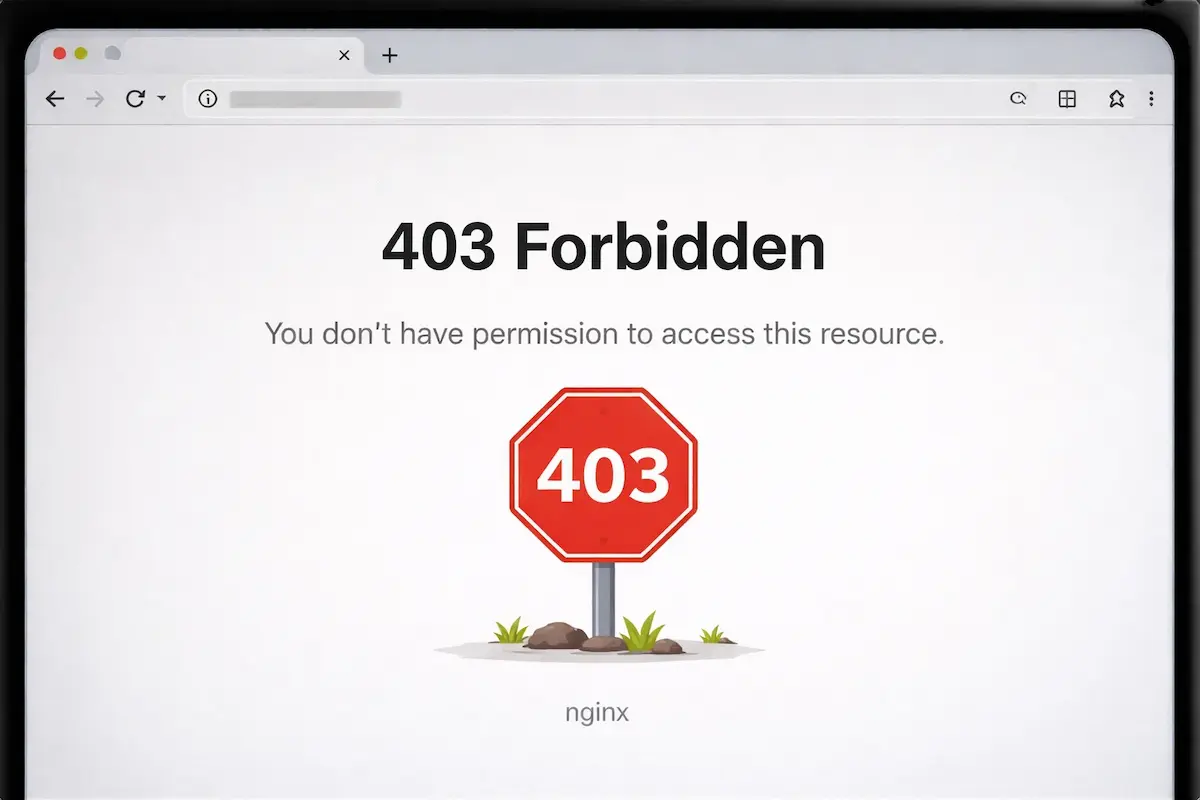
In many cases, this happens on the WordPress Admin login page or the wp-admin directory. You might see variations of this error, such as:
- “403 Forbidden: Access to this resource on the server is denied.”
- “HTTP Error 403: Forbidden.”
- “Forbidden: You don’t have permission to access [directory] on this server.”
- “Access Denied.”
Regardless of the version, the problem is the same: the web server is denying the authorization needed to view the contents of your WordPress installation.
Need Help Fixing a 403 Forbidden Error Fast?
Our WordPress emergency support team resolves access errors, server issues, and security blocks quickly with expert on demand assistance.
Common Causes of 403 Forbidden Error in WordPress
Before we jump into the fixes, we must understand the reasons behind this issue. Identifying the culprit saves time during troubleshooting.

Incorrect File and Folder Permissions in WordPress
Every file and folder on your hosting server has a set of permissions associated with it. These rules define who can read, write, or execute the code.
If these server permissions are set incorrectly, the server will block anyone, including the admin, from viewing the site. Incorrect file permissions are the most common cause of this error in WordPress.
Corrupted or Misconfigured .htaccess File in WordPress
The .htaccess file is a powerful configuration file used by the Apache web server. It handles links, redirects, and security settings.
If the code inside this file becomes corrupt, or if a security plugin adds faulty directives, it can trigger a 403 Forbidden status across the entire site.
WordPress Security Plugins Blocking Access
A security plugin like Wordfence is designed to block malicious IP addresses. However, sometimes these plugins overreach.
They might accidentally block your own IP address or flag a legitimate JavaScript request as a threat, resulting in a 403 Forbidden Access message.
CDN or Firewall Configuration Causing 403 Error
If you use a Content Delivery Network (CDN) like Cloudflare or a Web Application Firewall, they act as a shield between the visitors and your server.
If the firewall detects something it dislikes in the headers or the URL structure, it will trigger an Error 403 before the request even reaches your hosting provider.
Hosting Server Restrictions and IP Blocking
Sometimes, the issue is at the server level. Your hosting provider may have global security settings that block specific IP addresses or ranges.
If your ISP assigns you a blacklisted IP, you will see the Forbidden Error in WordPress until the support team whitelists you.
Step-by-Step Fixes for 403 Forbidden Error in WordPress
Follow these steps in order. We will begin with the easiest fixes and progress to more technical troubleshooting.
Step 1: Backup Your WordPress Website Before Troubleshooting
Before you change any code or file settings, create a full backup. Use a plugin or your hosting cPanel to copy your database and files.

Troubleshooting involves deleting or modifying the contents of the root folder, so having a backup ensures that you don’t lose everything if something goes wrong.
Step 2: Clear Browser Cache and WordPress Cache
Sometimes, the 403 error is a ghost in your browser. Your browser cache may be displaying an outdated version of the page from when the site was experiencing an issue.
- Clear your browser cookies and cache.
- Try accessing the URL in an Incognito window.
- If you have access to the WordPress Admin, clear your WordPress caching plugins.
Step 3: Check and Reset WordPress File and Folder Permissions
This is a frequent solution for 403 Forbidden errors. You will need an FTP client like FileZilla or the File Manager in your hosting dashboard.
- Connect to your site via SFTP or FTP.
- Go to the root folder (usually
public_html). - Right-click on the wp-admin, wp-content, and wp-includes folders.
- Select File Permissions.
- Set the Numeric Value to 755.
- Check the box that says “Recurse into subdirectories” and select “Apply to directories only.” Click OK.
- Now, select all files in the root folder.
- Right-click and set File Permissions to 644.
- Check “Recurse into subdirectories” and select “Apply to files only.” Click OK.
Why does this matter? Permissions of 755 for folders and 644 for files are the standard for WordPress security. Anything else might trigger a Forbidden Error.
Step 4: Regenerate or Replace the .htaccess File in WordPress
A corrupt .htaccess file is a common culprit. We need to reset it to the default WordPress version.
- Locate the .htaccess file in your root folder using an FTP client.
- Download a copy to your computer as a backup.
- Delete the file from the server.
- Try to access your WordPress site. If it works, the .htaccess was the problem.
- To fix this permanently, log in to your WordPress Admin Dashboard.
- Go to Settings → Permalinks.
- Do not change anything; just click the Save Changes button at the bottom. This tells WordPress to generate a fresh, clean .htaccess file.
Step 5: Deactivate All WordPress Plugins to Find Conflicts
If the error persists, a plugin might be causing a conflict.
- In your FTP client, navigate to the wp-content folder.
- Locate the plugins folder.
- Rename it to
plugins_old. This action deactivates all plugins at once.
- Check your site. If the 403 Forbidden error is resolved, one of your plugins is likely the source of the issue.
- Rename the folder back to
plugins.
- Go to your WordPress Admin and reactivate each plugin one by one until the error returns. The last one you activated is the problem app.
Step 6: Switch to a Default WordPress Theme
Occasionally, poorly coded themes can cause authorization errors.
- Using FTP, navigate to
wp-content/themes. - Find your active theme and rename the folder.
- WordPress will automatically fall back to a default theme (like Twenty Twenty-Four).
- If the site works, your theme has code causing misconfigurations.
Step 7: Disable CDN or Web Application Firewall Temporarily
If you use Cloudflare or Sucuri, they might be blocking your request.

- Log in to your Cloudflare account.
- Put the site into “Development Mode” or pause the CDN.
- If the error disappears, check your WAF (Web Application Firewall) rules. You might need to add an exception for your IP address.
- Check for hotlink protection settings. If hotlink protection is incorrect, it can block images from loading, sometimes throwing a 403 error code.
Read More: How to Fix DNS_PROBE_FINISHED_NXDOMAIN Error in Chrome
Step 8: Review Hosting Security Settings and Blocked IPs
Sometimes, you are the one being blocked. Your hosting provider may have a security module (like ModSecurity) that flagged your actions.
- Check your IP address by searching “What is my IP” on Google.
- Try accessing your site using a VPN or a different internet connection.
- If the site loads via VPN, your primary IP is blocked by the server-level firewall. You must contact your hosting support team to unblock it.
Step 9: Scan WordPress Site for Malware or Hacked Files
A 403 Forbidden Error can be a symptom of malware. Hackers often inject code into the index file or index page to divert traffic or block admin access.
- Use the malware scan tool provided by your hosting service.
- Look at the error logs in your hosting dashboard. They often provide clues and specific paths to the file causing the problem.
- If you find something suspicious, you may need to update your WordPress core files or hire experts for a cleanup.
Step 10: Contact WordPress Hosting Support for Server-Level Issues
If you have tried all the fixes above and still see the error, it is time to ask for help.
Contact your hosting provider’s support team. Tell them the troubleshooting steps you have already taken. They can check the Apache or NGINX error logs that you cannot see. They might find that a server update caused a permissions issue for everyone on that VPS or shared server.
Step 11: Check Apache or NGINX Server Configuration
For advanced users on a VPS, the issue might be in the web server config files.
- Apache: Check the
httpd.confor a virtual host file forDeny from alldirectives.
- NGINX: Check the
nginx.conffile forlocationblocks that might be returning areturn 403;status.
Step 12: Fix File Ownership Issues on WordPress Hosting
In some environments, having the right click permissions isn’t enough. The file must also be “owned” by the correct user (e.g., www-data). If your hosting migrated your site recently, the file ownership might be mismatched. Only your hosting support can typically fix this level of issue.
How to Test and Confirm the 403 Forbidden Error is Fixed
Once you have applied a solution, ensure that the Forbidden Error is truly gone.

- Check Multiple Pages: Don’t just check the homepage; also review other pages. Visit your posts, media library, and WP Admin.
- Verify Permalinks: Go to Settings Permalinks and save. Ensure links are working and not leading to 404 or 403 errors.
- Check Assets: Ensure that all images, CSS, and JavaScript files are loading correctly. You can verify this by opening the “Inspect” tool in your browser and checking the “Console” for any red error messages.
- Test from Different IPs: Use your mobile data or a VPN to ensure the site is accessible globally, not just locally.
Conclusion on Fixing 403 Forbidden Error in WordPress
Dealing with a 403 Forbidden Error is a lot of work, but it is a manageable problem. In most cases, the fix lies in incorrect file permissions or a corrupt .htaccess file. By following this step-by-step guide, you can systematically eliminate causes until your WordPress site returns to normal.
Don’t panic when you see an Error 403. It is simply a server saying, “I need the right key.” Use these troubleshooting steps, keep your security settings up to date, and always maintain a recent backup.
FAQs About 403 Forbidden Error in WordPress
What does the 403 Forbidden Error mean in WordPress?
The 403 Forbidden Error means the server understands the request but denies access. In WordPress, this usually happens due to incorrect file permissions, security rules, or blocked access by the server or a plugin.
Can incorrect file permissions cause a 403 Forbidden Error in WordPress?
Yes. Incorrect file or folder permissions are one of the most common causes. If WordPress does not have permission to read or execute files, the server blocks access and shows a 403 error.
Do security plugins trigger a 403 Forbidden Error in WordPress?
Yes. Security plugins can block access if they detect suspicious activity. Firewall rules, IP blocking, or aggressive protection settings may incorrectly restrict valid users or requests.
How do I fix a 403 Forbidden Error without WordPress admin access?
You can use an FTP client or the hosting file manager. Check file permissions, rename the plugins folder, and reset the .htaccess file. These steps often fix the issue even without dashboard access.
When should I contact my hosting provider for a 403 error?
You should contact your hosting provider if none of the basic fixes work. Server-level rules, firewall settings, or ownership issues often require help from the hosting support team.

