


In this step-by-step guide, we’ll show you how to integrate ChatGPT into WordPress, from setting up your OpenAI account to configuring live chat and optimizing content for SEO.
Artificial intelligence is transforming how we build websites, manage content, and engage users. One of the most powerful tools in this space is ChatGPT, developed by OpenAI. It’s a conversational AI that can answer questions, generate content, and even act as a virtual assistant on your website.
For WordPress site owners, integrating ChatGPT can open up new ways to connect with visitors, automate tasks, and boost productivity. Whether you’re a blogger, business owner, or web developer, adding ChatGPT to your WordPress workflow can elevate your site experience.
1. What is ChatGPT and Generative AI?
ChatGPT is a type of generative AI that uses natural language processing (NLP) to understand and generate text that feels human. You can ask it questions, give it prompts, or have it create entire blog posts.
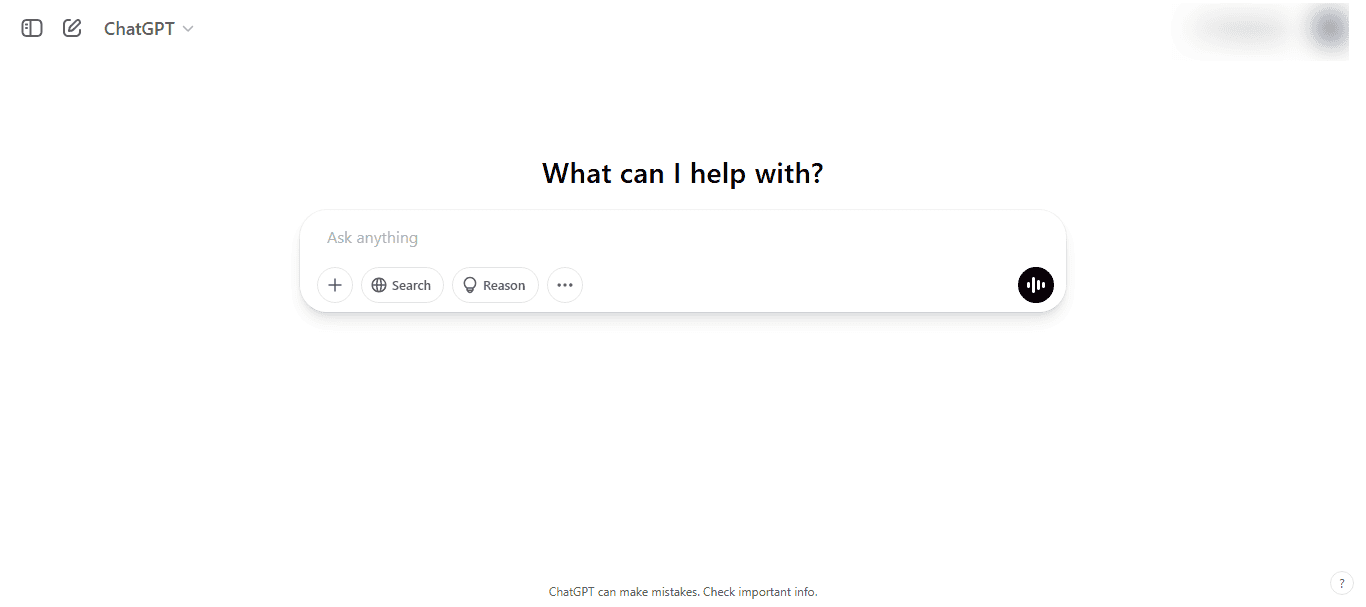
Generative AI, more broadly, refers to artificial intelligence that can create new content. This includes not just text but also images, audio, and even video.
So, what does this mean for WordPress users?
It means you can use ChatGPT to:
- Automate customer interactions,
- Create high-quality content,
- Streamline SEO workflows,
- And much more, all from within your WordPress dashboard.
Read about: Ceros vs WordPress
2. How to Integrate ChatGPT into WordPress?
You can integrate ChatGPT into WordPress in just a few steps. Let’s walk you through the process.
Step 1: Setting Up an OpenAI Account and API Key
Before you can use ChatGPT, you’ll need an OpenAI account.
- Go to OpenAI’s website and sign up.
- Once logged in, head over to the API section and generate a new API key.
- Make sure to add billing details, as OpenAI’s API requires a payment method.
- Copy and save the API key somewhere safe, as you’ll need it in the next step.
Step 2: Choosing the Right ChatGPT Plugin for WordPress
Next, choose a plugin that integrates ChatGPT into your WordPress site. Some popular options include:
When choosing a WordPress plugin, consider:
- Ease of use: Is it beginner-friendly?
- Customization: Can you tailor responses or behavior?
- Support and updates: Is the ChatGPT plugin actively maintained?
- Reviews and ratings: What are other users saying?
Check the documentation to ensure it’s compatible with your current theme and setup.
Step 3: Installing and Configuring the Plugin
Once you’ve chosen your plugin, follow these steps:
- Install and activate the plugin from the WordPress dashboard.
- Navigate to the plugin’s settings panel.
- Paste your OpenAI API key into the designated field.
- Choose your preferred ChatGPT model (e.g., GPT-4 or GPT-3.5).
- Configure other settings such as tone, personality, or character limit.
Save changes, and you’re ready to go!
Step 4: Configuring Live Chat Settings
If you want to use ChatGPT as a live chat support assistant, many plugins help you customize how ChatGPT interacts with users. Some options include:
- Bot-only: ChatGPT handles all queries.
- Human-only: ChatGPT is used just for drafting or assistance.
- Hybrid: Start with ChatGPT, then transfer to a human agent if needed.
You can also customize the chat widget appearance and set welcome messages, fallback replies, and more. For advanced setups, you may need to add custom JavaScript or shortcodes to fully embed ChatGPT into your live chat.
Need Help Integrating ChatGPT into WordPress?
We specialize in plugin integration and custom WordPress web development support to help you get the most out of ChatGPT.
3. Using ChatGPT as a Content Generator
One of the most powerful ways to leverage ChatGPT in WordPress is for content creation. Whether you’re managing a blog, eCommerce site, or social media channels, ChatGPT can help you produce high-quality page content faster while maintaining consistency.
Access the ChatGPT Interface
First things first, open the ChatGPT interface provided by your installed plugin. Navigate to the plugin settings or content editor, where the ChatGPT input box or assistant typically lives. Most plugins integrate directly into the WordPress editor for ease of access.
Enter a Clear and Targeted Prompt
The quality of your prompt influences the output. So be specific about what you need. Type in a detailed prompt like “Write a blog post on the top 5 benefits of email marketing for small businesses.” You can also request different formats like listicles, FAQs, or product descriptions.
Let ChatGPT Generate the Content
Once you hit enter, ChatGPT gets to work and creates content in seconds. The tool will provide a complete draft, which may include headlines, body content, and even calls-to-action depending on your prompt.
Review, Edit, and Refine
AI can get you 80% there, but that last 20% is up to you. Go through the generated content and tweak the tone, adjust the structure, and fact-check details. Make sure it aligns with your brand voice and audience expectations.
Publish or Reuse the Content
Now that your content is ready, you can use it across various platforms. Publish it as a blog post, repurpose it for social media, or adapt it into a product description or email campaign. With a bit of editing, ChatGPT-generated content can easily fit any format.
Guide to: Custom WordPress Development Services
4. Optimizing ChatGPT-Generated Content for SEO
While ChatGPT can quickly generate high-quality content, it’s important to refine it to make it search-engine friendly. SEO optimization ensures that your content not only reads well but also ranks well on Google and other search engines. Here’s how to polish your AI-generated text and content for maximum visibility:

Add Relevant Keywords Naturally
Keywords help search engines understand what your content is about. But stuffing them in won’t do any good. Instead, conduct keyword research using tools like Google Keyword Planner, Ubersuggest, or Semrush. Then, insert your primary and secondary keywords naturally into headings, paragraphs, and image alt text.
Use Proper Header Tags for Structure
A well-structured post makes it easier for both readers and search engines to navigate your content. Use H1 for the title, H2 for main sections, and H3 for sub-points or nested ideas. This hierarchy improves readability and SEO value.
Include Internal and External Links
Linking is essential for SEO. It helps users find related content and signals to Google that your page is connected to other valuable resources. Add internal links to related blog posts or service pages on your own site. Also, include credible external links to authoritative sources when relevant.
Add Descriptive Alt Text to Images
Alt text isn’t just for accessibility; it’s also an SEO ranking factor. Write concise and relevant alt text for every image you use. Include keywords where appropriate, and make sure they accurately describe the visual content.
Craft Compelling Meta Titles and Descriptions
These snippets appear in search engine results and play a huge role in click-through rates (CTR). Write clear, concise, and keyword-rich meta titles (under 60 characters) and meta descriptions (under 160 characters). Focus on user intent and include a call to action if appropriate.
Know more: Essential SEO Strategies for Your WordPress Site
5. Adding ChatGPT to Your WordPress Workflow
ChatGPT isn’t just a content generation tool; it can become an essential part of your daily WordPress workflow. By integrating it into various tasks, you can boost productivity, streamline operations, and enhance user experience across your site. Here’s how to make ChatGPT work harder for you:
- Draft Blog Outlines and Emails Effortlessly: Starting from scratch can slow you down. ChatGPT helps you hit the ground running. Use prompts to generate post outlines, complete blog posts, or email templates. Whether you’re launching a new product or sending a weekly newsletter, ChatGPT can help you structure it quickly.
- Automate Responses to FAQs: Tired of typing the same answers over and over? Let ChatGPT handle it. Use it to draft helpful, accurate answers to frequently asked questions. These can be added to your FAQ page, chatbot, or support section to save time and improve customer satisfaction.
- Generate Product Descriptions at Scale: Running an eCommerce site? ChatGPT can help you describe products clearly and creatively. Provide a few product details (features, benefits, target audience), and let ChatGPT turn them into polished, SEO-friendly descriptions.
- Create Customer Support Scripts: Consistency is key in support communications. AI can help you keep it professional and human. Generate conversation scripts for chatbots or support reps. It can cover scenarios like refund requests, order tracking, or onboarding new users.
- Brainstorm New Content Ideas: Running out of topics? ChatGPT is a great idea generator. Ask it for blog post ideas, video topics, social media captions, or even lead magnet suggestions based on your niche or trending keywords.
Check out: How to Set up SEO on WordPress Website
6. Troubleshooting Common Issues
Even the best tools can occasionally hit a snag, and ChatGPT integrations are no exception. Whether it’s a plugin not functioning properly or an unexpected error message, most problems are easy to resolve with a bit of guidance. Here’s a quick look at common issues you might face when integrating ChatGPT into WordPress, along with practical solutions to fix them.
Plugin Not Working Properly
Sometimes, the ChatGPT plugin may not behave as expected. This could be due to WordPress theme conflicts or compatibility issues with other installed plugins.
How to Resolve: Try deactivating other plugins one by one to identify conflicts. Also, switch temporarily to a default WordPress theme (like Twenty Twenty-Four) to rule out theme-related issues.
API Key or Billing Errors
If you’re seeing errors related to API usage, chances are there’s a problem with your OpenAI key or account settings.
How to Resolve: Double-check that you’ve entered the correct API key in the plugin settings. Also, ensure your OpenAI account has active billing information and available quota.
Inconsistent or Irrelevant Responses
Not happy with the way ChatGPT is replying? You’re not alone! Response quality can vary depending on how the tool is set up.
How to Resolve: Try adjusting the plugin’s prompt format, tone settings, or temperature parameter. You can also test different models (like GPT-4 vs GPT-3.5) for better results.
Plugin Not Displaying on the WordPress Site
If the chatbot widget or interface isn’t appearing where it should, it might be a shortcode issue or script conflict.
How to Resolve: Make sure you’ve correctly placed any required shortcodes in your pages or posts. Also, check for JavaScript conflicts in the browser console.
No Response from ChatGPT
If your chatbot isn’t generating any replies at all, there could be a connectivity or server-side issue.
How to Resolve: Ensure your server allows external API requests and that there are no firewall restrictions. You can also try using a different API key to rule out key-specific problems.
Where to Find Help
If all else fails, don’t worry. There are plenty of resources available. Check the plugin’s official documentation or support forum for known issues and updates. You can also reach out to the plugin developer directly for technical assistance. If you’re comfortable with code, OpenAI’s API docs can be helpful too.
Still Stuck or Need Expert Assistance?
Check out our on-demand WordPress support for fast, reliable help with plugin issues, ChatGPT integration, and more.
- Get Support Now
Conclusion
Integrating ChatGPT into WordPress is easier than ever, and the benefits are hard to ignore. Whether you’re looking to streamline content creation, engage users via live chat, or automate repetitive tasks, ChatGPT has you covered.
With the right plugin and setup, you can transform your WordPress site into a smart, AI-powered platform that works harder for you. So go ahead and leap into the future of content and customer engagement. Your website visitors (and your productivity) will thank you.
FAQs About WordPress ChatGPT Integration
Is ChatGPT free to use on the WordPress website?
No, it’s not free. ChatGPT requires an OpenAI API key, which comes with usage-based pricing. Some plugins offer free trials, but you’ll need to add billing info to use the full functionality.
Can ChatGPT replace human customer support?
ChatGPT can handle many queries, especially FAQs. However, for complex or sensitive issues, human support is still essential. A hybrid approach works best.
Is ChatGPT-generated content good for SEO?
It can be, especially when edited and optimized. However, make sure to include keywords, use proper formatting, and add internal/external links.
Which plugin is best for ChatGPT integration?
WordPress plugins for ChatGPT integration include AI Engine and Jetpack AI Assistant. The best plugin, however, depends on your use case, budget, and customization needs.
Can I customize ChatGPT’s tone or personality?
Yes, you can customize ChatGPT’s tone or personality. Many plugins allow you to set tone, style, or even define a custom persona for the AI chatbot to boost user engagement.

