


Want your WordPress site to run fast, stay secure, and rank higher on Google? You must then maintain a WordPress website regularly. Just like a car needs routine servicing, your site needs consistent care to perform at its best.
Ignoring maintenance can lead to slow load times, security breaches, and lost visitors. With the proper upkeep strategy, you can keep your site smooth, safe, and search engine-friendly.
In this guide, you’ll learn the essential tasks, tools, and schedules to keep your WordPress website in peak condition. Let’s dive in and make sure your site stays powerful, protected, and ready to impress every visitor.
Why Regular WordPress Maintenance is Crucial for Speed, Security, and SEO
Many website owners start with a beautiful design and great content. They often overlook the essential maintenance tasks required to keep the site healthy. This neglect is a significant and common mistake. Your site is powered by complex WordPress software, which requires regular maintenance and care.
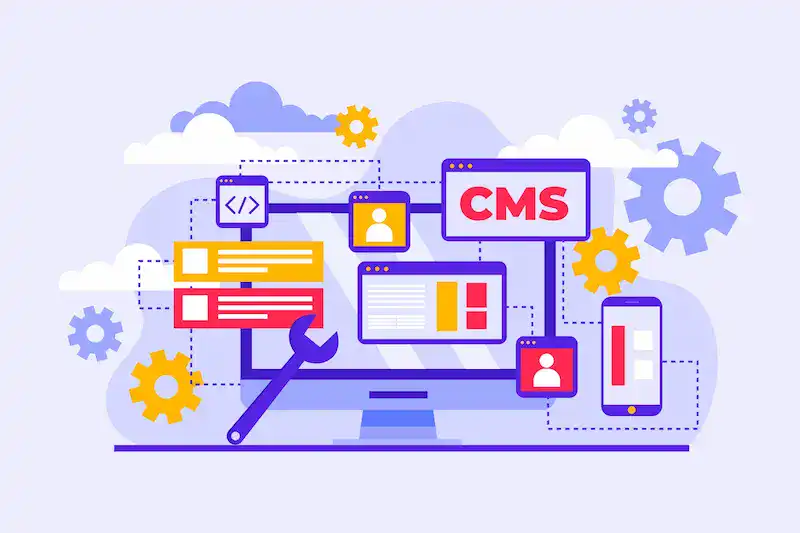
Regular WordPress maintenance is the foundation of a successful website. It directly influences the three pillars of online success: speed, security, and Search Engine Optimization (SEO).
- Security: WordPress’s popularity makes it a prime target for hackers. Outdated plugins, themes, and WordPress core software are the most common entry points for a security threat. Timely updates and vigilant WordPress security measures are essential to stay ahead of malicious attacks and ensure your WordPress site remains safe.
- Speed and Performance: Visitors demand fast websites. Slow loading times can frustrate users, resulting in high bounce rates. Google and other search engines penalize websites that load slowly. Regular cleanup, optimization, and performance tweaks significantly reduce slow loading times. This effort is essential for optimal performance.
- SEO Rankings: Google favors sites that are fast, secure, and error-free. Broken links, 404 errors, and poor mobile responsiveness negatively impact your SEO score. Regular site maintenance addresses these technical issues. It ensures that search engines can easily crawl and index your content, resulting in higher rankings and increased organic traffic.
Failing to address these key maintenance tasks can result in costly and time-consuming issues. A small investment of time in a consistent maintenance schedule saves you from the disaster of a hacked, crashed, or completely offline website.
Keep Your WordPress Site Running Smoothly with Expert Care
Focus on growing your business while our WordPress experts handle updates, backups, and performance optimization to keep your website secure and running flawlessly.
Complete WordPress Maintenance Guide: Tasks, Schedule, and Optimization
Effective WordPress website maintenance involves a set of recurring tasks. These tasks should be organized into a reliable schedule. Follow this structured approach to maintain a WordPress website for the long term.

Update Core, Plugins, and Themes Safely
Outdated software is the number one cause of security breaches. Developers release updates for the WordPress core, WordPress theme, and plugins for two main reasons: to patch security issues and to add new features or performance improvements. You must prioritize installing updates.
- The Crucial Pre-Step: Never update on your live site without a safety net. Before performing any WordPress update, create a full backup. This backup includes your files and your WordPress database.
- Use a Staging Site: For critical updates, use a staging site. A staging site is a private clone of your live site. Test all updates there first. This step enables you to identify and resolve compatibility issues before they impact your visitors.
- Update Strategy: Update your WordPress core first. Then update your plugins and themes. Always check the plugin’s changelog to anticipate any potential conflicts.
- Remove Unused Components: Deactivate and delete any unused plugins or themes. They are unnecessary liabilities that only bloat your site and introduce potential vulnerabilities. This helps reduce plugin updates.
Perform Regular Backups and Security Scans
Your backup is your ultimate defense against data loss. Accidents, hacks, and updates that break the site can all happen. Having a recent backup means you can quickly restore your site to a working state.
- Automated Daily Backups: Set up a reliable backup plugin or use a backup service from your WordPress hosting provider. It should perform automated daily backups of your entire site, files, and database.
- Off-Site Storage: Your backup files should be stored remotely. Use a secure, off-site storage location, such as Amazon S3, Dropbox, or Google Drive. Store the backups securely, away from your primary server.
- Test Restores: Periodically verify your website backups are working. The accurate measure of a backup is the ability to perform a restore from backups. Do a test restore to your staging environment every few months.
- Run Security Scans: Install a robust security plugin, such as Wordfence. Schedule regular, deep security scans to check for malicious code, file changes, and potential vulnerabilities. These malware scans are essential for continuous monitoring.
Monitor Performance, Fix Errors, and Optimize Database
A sluggish website frustrates both users and search engines. Performance monitoring and cleanup are ongoing maintenance tasks.
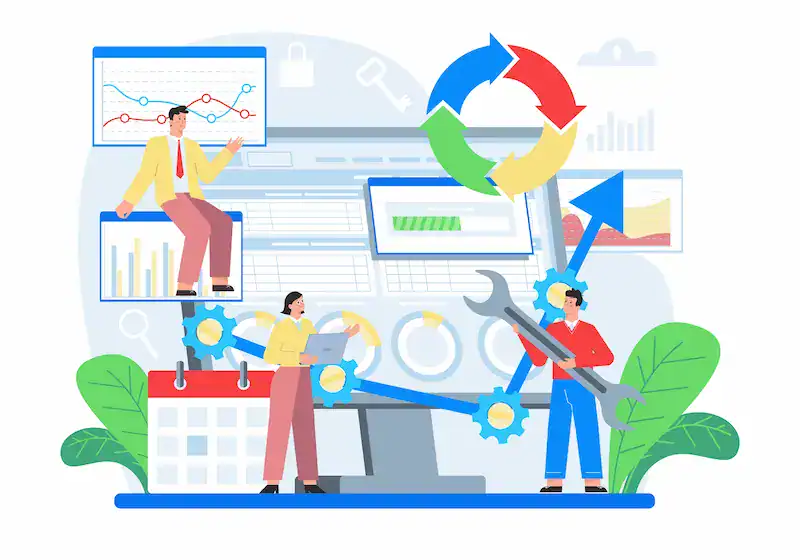
- Uptime Monitoring: Utilize an uptime monitoring service to receive instant alerts if your site experiences an outage. Quick response minimizes downtime.
- Test Forms and Functions: Regularly test all critical user touchpoints to ensure optimal performance and functionality. Ensure that your contact forms, sign-up forms, and e-commerce checkout processes are functioning correctly.
- Clean and Optimize the Database: Over time, your WordPress database accumulates unnecessary junk. This includes post revisions, trashed items, and spam comments. This clutter harms database performance.
- Check Site Health: Use the WordPress Site Health tool (located under the Tools menu) for diagnostics. Address any critical issues or recommended improvements it highlights.
Plan Daily, Weekly, and Monthly Maintenance Routines
Structuring your WordPress maintenance into routine tasks ensures nothing is overlooked.
| Frequency | Maintenance Tasks (Example Schedule) | Focus |
| Daily | Check the uptime monitoring status. Review security plugin logs for failed login attempts. Run an automated daily backup check. | Proactive Security & Monitoring |
| Weekly | Run a full malware scan. Approve or delete new comments, clear spam comments. Delete unused backup files from the local server. Check the site’s overall appearance (front-end inspection). | Security & Content Health |
| Monthly | Create a fresh, full backup (including files and databases). Update all outdated core, themes, and plugins (starting with the staging environment first). Optimize the WordPress database. Clear all caching layers. * Check for and fix broken links and 404 errors. | System Health & Optimization |
| Quarterly | Review and delete any unused themes or new plugins. Change WordPress administrator passwords. Test the integrity of your website backups (test restore). Run an initial seo audit and performance test. | Security Deep Dive & Auditing |
Improve Loading Speed with Caching, CDN, and Minification
Speed is a significant ranking factor for search engines and a crucial component of the user experience.
- Implement Caching: Caching is the single most effective way to address slow loading times. A caching plugin stores a static version of your pages. This reduces the number of server requests and the strain on server resources.
- Use a CDN: A Content Delivery Network (CDN) is a global network of servers. It copies and serves your static files (images, CSS, JavaScript) from the server geographically closest to your visitor. A CDN drastically improves your site’s speed worldwide.
- Minify Code: Minification is the process of removing unnecessary characters (like comments and whitespace) from your HTML, CSS, and JavaScript code. This reduces file sizes, enabling the browser to load them more quickly.
Optimize Images, Reduce Plugin Bloat, and Clean Database
Many performance issues stem from poor media and resource management.

- Optimize Images: Large, uncompressed images are the most common cause of a slow WordPress website. Before uploading, compress your images. Use a plugin like ShortPixel to automatically optimize and resize images. Consider using the WebP format for faster loading.
- Manage Your Media Library: Periodically review your media library. Delete any unused images or files. A bloated media library slows down the administrative interface and consumes unnecessary server resources.
- Reduce Plugin Bloat: The fewer active plugins you have, the better your site’s security and speed will be. Continuously audit your installed plugins. If a plugin is not essential, delete it. Look for single-purpose plugins that a multi-function solution can replace.
Enhance Mobile Responsiveness and User Experience
Google uses mobile-first indexing. Your site must look and function perfectly on all devices.
- Regular Testing: After every major update or design change, test your WordPress site on various screen sizes (mobile, tablet, desktop). Look for layout breaks, unclickable elements, and broken images.
- Improve Navigation: A clear and intuitive user experience (UX) keeps visitors engaged. Ensure your site’s navigation is simple and your main calls to action are prominent.
- Monitor User Behavior: Utilize Google Analytics or similar tools to track bounce rates and average time spent on each page. High bounce rates on specific pages can indicate a UX or performance problem that requires a fix.
Run SEO Audits, Fix Broken Links, and Refresh Content
Technical SEO is essential for maintaining a website. Errors here prevent search engines from discovering your pages.
- SEO Audit: Run a quarterly SEO audit using tools like Google Search Console or SEMrush. Look for crawl errors, duplicate content, or missing meta descriptions.
- Fix Broken Links: Broken links (both internal and external) are detrimental to both SEO and user experience. Use a tool to scan your site on a regular basis. Redirect 404 errors and update external links that no longer work.
- Refresh Content: Update your existing thorough content. Add new information, statistics, or images. Content freshness is a significant ranking signal for search engines.
Best Practices, Tools, and Services for WordPress Maintenance
You can perform all these tasks yourself, or you can use tools and external maintenance services to simplify the process.

Avoid Common Maintenance Mistakes
Learn the most frequent WordPress maintenance mistakes and how to prevent them to keep your site secure, fast, and running smoothly.
- Skipping Backups: The most dangerous mistake. Always have regular backups saved off-site.
- Ignoring Updates: Delaying updates to the WordPress plugins or themes creates a massive open door for security threats.
- Updating on the Live Site First: Manual intervention directly on the live site carries the risk of downtime. Always use a staging site for testing critical updates.
- Using Too Many Plugins: A cluttered plugin library increases the risk of conflicts and slows down the site. Only install necessary, well-reviewed plugins.
- Neglecting Passwords: Use strong, unique passwords and enable two-factor authentication (2FA) on all admin accounts to enhance your site’s security.
Use Automation, AI, and Maintenance Plugins
Technology can automate many repetitive maintenance tasks.
- Backup Solutions: Plugins like UpdraftPlus or BlogVault offer automatic updates and schedule automated daily backups to cloud storage.
- Security Tools: A good security plugin provides an application firewall, limits login attempts, and performs automatic security scans for malware.
- Caching Plugins: These tools handle multiple optimization tasks, including caching, minification, and image optimization, without requiring extensive manual intervention.
- Maintenance Services: Some tools integrate into a unified dashboard, allowing you to manage multiple WordPress site updates and backups from a single location.
Evaluate WordPress Maintenance Services and Costs
For busy website owners or business-critical sites, professional website maintenance services are a wise investment.
- DIY: You handle all these tasks yourself. Cost is primarily your time. This is only viable for simple, low-traffic sites.
- Managed Hosting: Many quality WordPress hosting providers offer automatic updates for the WordPress core and daily backups as part of their package.
- Dedicated Services: WordPress maintenance services companies offer complete, hands-off solutions. These services cover everything from updates and security measures to performance optimization and support.
Follow a Long-Term Maintenance Checklist for Success
Consistency is key to keeping a WordPress website healthy.
- Document Everything: Maintain a log of all updates, significant changes, and performance results. This record helps troubleshoot issues later.
- Annual Hosting Review: Assess Your WordPress Hosting Provider Annually. Ensure your plan continues to meet your traffic and performance needs.
- Content Audit: Review your content strategy annually to ensure it remains effective. Identify underperforming pages, update old posts, and improve internal linking. This is a critical piece of your long-term SEO strategy.
- Stay Informed: Keep up with the latest WordPress update news, security bulletins, and SEO best practices.
Conclusion
Regular, proactive WordPress maintenance is the single best way to protect your investment and ensure your WordPress site achieves optimal performance and remains secure.
By implementing daily backups, regularly updating your software, optimizing your WordPress database, and being vigilant with security measures, you build a robust and fast online presence.
Don’t wait for a crash or a security breach to act. Start your consistent maintenance routine today. This proactive approach guarantees smooth operation and long-term success for your WordPress website.
FAQs About Maintaining a WordPress Website
What are the most important WordPress maintenance tasks to perform regularly?
The most important maintenance tasks include updating your WordPress core, plugins, and themes; performing daily backups; running malware scans; and optimizing your database. These tasks keep your site secure, improve performance, and ensure everything is working correctly.
How often should I update plugins and themes?
You should check for plugin updates and theme updates at least once a week. Outdated software can create security risks and slow down your site’s performance. Always back up your site before updating to ensure you can restore it if something goes wrong.
What are the key monthly tasks to keep a WordPress site running smoothly?
Monthly tasks include reviewing site speed, removing unused plugins, restoring backups to test them, and checking plugins’ settings for errors. You should also perform malware scans and fix broken links to ensure your site continues to run smoothly.
What is the cost of WordPress maintenance if I hire professionals?
The maintenance cost depends on the size and needs of your website. Basic plans may start around $99 per month, while full-service maintenance from WordPress experts can cost $999 or more. These services handle backups, updates, and performance monitoring on your behalf.
Where should I securely store my WordPress backups?
Always securely store your daily backups in remote locations such as cloud storage or external drives. This ensures you can easily restore backups if your site faces a crash or security issue. Keeping multiple copies protects your site’s data and stability.

