

Running a WordPress site comes with a fair share of maintenance, and perhaps the most frequent task is managing your installed plugins. Whether you are a beginner or a seasoned developer, knowing how to update WordPress plugins correctly is vital for your site’s health.
Updates are not just about getting the latest shiny features; they are crucial for security and performance. However, the update process can sometimes feel like a daunting task. Will the new version break my site? Will there be compatibility issues?
In this comprehensive guide, we will walk you through the exact steps to update plugins safely. We will cover everything, from automatic options to manual updates via FTP client and WP-CLI, ensuring you have a method that fits your specific needs.
TL;DR: Update WordPress Plugins
- Keeping WordPress plugins up to date is essential for maintaining security, improving performance, addressing bugs, and accessing new features.
- Always take precautions before updating by creating a full backup, using a staging site, and checking compatibility details.
- You can update plugins using multiple methods, including automatic updates, manual dashboard updates, bulk updates, FTP, or WP CLI, depending on your skill level and situation.
- Automatic updates are convenient for trusted and straightforward plugins, while manual updates are safer for critical or complex plugins.
- After every update, clear caches, test key site functions, and review visuals and error logs to ensure everything works correctly.
Understanding Why Updating WordPress Plugins Matters
Before diving into the “how,” it is essential to understand the “why.” Many WordPress users ignore the red notification bubbles on their dashboard, but this can be a costly mistake.

- Security Vulnerabilities: The most critical reason to keep all your plugins up to date is to address security vulnerabilities. Hackers often exploit known bugs in outdated plugins. Plugin developers constantly release security patches to close these loopholes.
- New Features and Improvements: A new version of a plugin often brings enhanced functionality. This could be a better user interface, new tools, or improved integration with the WordPress core.
- Bug Fixes: If a specific plugin is acting buggy or causing errors, an update often resolves these issues.
- Speed and Performance: Plugin updates often include code optimizations that can enhance your site’s load speed.
Let Experts Handle Your WordPress Updates
Keep your site secure, fast, and fully compatible with professional WordPress update services that manage core theme and plugin updates safely.
Prerequisites Before You Update WordPress Plugins Safely
You should never click “update” blindly on a live site. Taking a few precautionary steps can save you from a broken website and hours of troubleshooting.
- Create a Complete Backup: This is the golden rule. Before you update any WordPress plugin, ensure you have a fresh backup of your site. This includes your database and your plugins folder. If an update fails, you can restore your site’s functionality instantly.
- Use a Staging Site: A staging site is a clone of your live website. It allows you to test updates in a safe environment. If a conflicting plugin crashes the staging environment, your live site remains unaffected.
- Check the Changelog: Click “View version details” before updating. This tells you what has changed. If you encounter a “Major Release” or significant code changes, proceed with extra caution.
- Check Compatibility: Ensure the listed plugin is compatible with your WordPress version and PHP version.
Different Methods to Update WordPress Plugins Safely and Easily
There are several ways to handle updates. Depending on your technical comfort level and the number of sites you manage, you can select the method that best suits your needs.
Method 1: Updating WordPress Plugins Automatically Using the Dashboard
For most users, the easiest way to keep a site secure is to enable automatic plugin updates. WordPress introduced a native feature to handle this without the need for third-party tools.
Enabling Automatic Updates for Trusted WordPress Plugins
You can enable this feature for specific plugins or all the plugins on your list.
- Log in to your WP Admin dashboard.
- Navigate to the Plugins page (Plugins → Installed Plugins).
- Look for the column labeled “Automatic Updates.”
- Click the link labeled “Enable auto-updates” next to the plugin you want to enable.
Once enabled, WordPress will automatically install new versions as soon as the plugin developers release them.
Pros and Cons of Automatic Plugin Updates in WordPress
While convenient, automatic plugin updates are not perfect for every scenario.
- Pros: It is a “set it and forget it” solution. Your site receives critical updates and security patches immediately, reducing the window of vulnerability.
- Cons: If an update contains a bug or causes compatibility issues, your site might break while you are asleep or away from the computer. It is generally safer to auto-update simple, well-maintained tools, but it is recommended to manually update complex ones, such as WooCommerce or page builders.
Method 2: Manually Updating WordPress Plugins From the Admin Dashboard
This is the standard update process used by most site owners. It gives you control over when the update happens.

Step-by-Step Process to Update Individual WordPress Plugins
This process explains how to update individual WordPress plugins directly from the admin dashboard without risking site functionality or data loss.
- Step 1: Go to your WordPress admin area.
- Step 2: Click on the “Updates” menu item or the “Plugins” tab.
- Step 3: You will see a notification indicating the number of plugin updates available.
- Step 4: Locate the specific plugin you want to update.
- Step 5: Click the “Update Now” link located just below the plugin description.
- Step 6: Wait for the message “Updated!” to appear.
When Manual Plugin Updates Are Recommended
Manual updates are best suited for critical plugins that have a significant impact on your site’s core structure. By updating manually, you can immediately check if the site’s functionality remains intact after the change. This method is highly recommended for major releases (e.g., updating from version 2.0 to 3.0).
Read More: Complete Guide to Updating WordPress Manually and Automatically
Method 3: Bulk Update WordPress Plugins Efficiently
If you have many plugins installed, updating them one by one can be tedious. The bulk update feature allows you to update multiple plugins simultaneously.
Using the Bulk Update Feature in the WordPress Admin Area
- Navigate to the Plugins page.
- Click the “Update Available” link at the top to filter the list.
- Check the box next to “Plugin” in the header to select all your plugins that need updates.
- From the Bulk Actions dropdown menu, select “Update.”
- Click the “Apply” button.
Best Practices for Bulk Updating Multiple WordPress Plugins
While fast, bulk update actions can be risky. If the site crashes, you won’t know which specific plugin caused the error.
- Group Updates: Do not update 20 plugins at once. Update them in batches of 3 to 5.
- Prioritize: Update essential plugins first, check the site, and then proceed to other plugins.
- Avoid Peak Times: Perform bulk updates during non-peak hours.
Method 4: Updating WordPress Plugins via FTP or File Manager
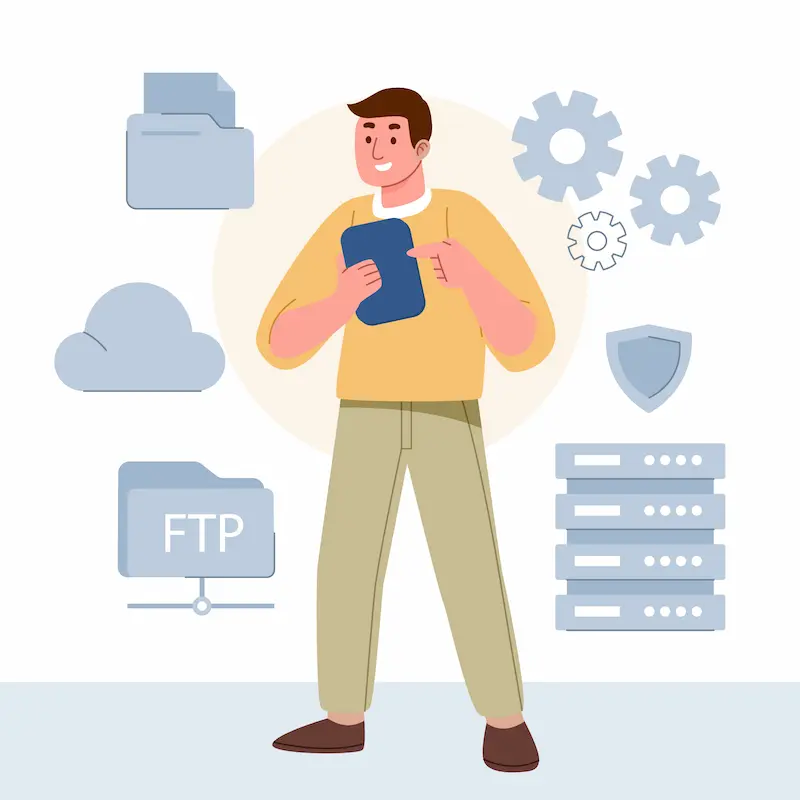
Sometimes, you cannot access your WP Admin dashboard, usually due to a fatal error caused by a conflicting plugin. In these cases, you need to use an FTP client (like FileZilla) or your hosting provider’s File Manager.
When FTP Plugin Updates Are Necessary
This method is a lifeline when:
- The update process fails midway.
- You are seeing the “White Screen of Death.”
- You need to roll back to a previous version or an older version of a plugin that isn’t available in the repository.
Safely Replacing Plugin Files Without Losing Settings
This step involves overwriting the plugin files correctly while preserving the database data and configuration stored by the plugin.
- Download the latest zip file of the plugin from the WordPress repository or the developer’s site. Unzip it on your computer.
- Connect to your site using an FTP client.
- Navigate to the /wp-content/plugins/ folder.
- Locate the folder of the plugin you want to update.
- Critical Step: Rename the existing folder (e.g., rename ‘jetpack’ to ‘jetpack-old’). This effectively deactivates it and serves as a backup.
- Upload the new unzipped plugin folder to the /wp-content/plugins/ directory.
- Check your live site. If it works, you can delete the …-old folder.
- Your settings are stored in the database, not the plugins folder, so replacing the files via FTP will not delete your configuration.
Method 5: Using WP CLI and Plugin Management Tools to Update Plugins
For developers and those managing multiple plugins across multiple sites, command-line tools and management software are game changers.
Updating WordPress Plugins Using WP CLI Commands
WP-CLI (Command Line Interface) is a powerful tool for managing WordPress without a web browser. It is faster and less prone to timeouts than the web interface.
To update a plugin, you would SSH into your server and run:
wp plugin update plugin-name
To update all plugins at once:
wp plugin update –all
You can also check the status of installed plugins using the ‘wp plugin list’ command. Developers favor this method for its speed and scriptability.
Popular Plugin Update Tools and Managed Hosting Solutions
If the command line isn’t for you, consider popular tools. These allow you to update plugins on dozens of sites from a single dashboard.
Additionally, many managed hosting solutions (like WP Engine or Kinsta) offer features to update plugins with a “Smart Update” technology automatically.
This technology spins up a temporary staging site, runs the update, checks for visual changes or errors, and only pushes the update to the live site if everything looks safe.
Best Practices to Prevent Issues While Updating WordPress Plugins
To ensure your site stays secure and functional, follow these best practices consistently:
- Don’t Delay Security Updates: If a plugin update addresses security issues, apply it immediately.
- Wait on Major Releases: For non-critical major updates (e.g., a release focused on new features), wait a few days. Let other users find the bugs first.
- Keep Premium Plugins Licensed: Custom plugins or premium ones, such as the Genesis Framework or page builder add-on modules, require an active license key to receive updates. Ensure these keys are valid.
- Monitor Abandoned Plugins: If the developer hasn’t updated a plugin listed on your site in over a year, consider replacing it. Outdated plugins are a security risk even if your site is otherwise up to date.
Post Update Maintenance and Checks After Updating WordPress Plugins
The work isn’t done once you click “Update.” You must verify that the site’s secure status is maintained and everything is working correctly.

- Clear Caches: Clear your browser cache and any caching plugins on your WordPress site. This ensures visitors see the new version of the scripts.
- Check Critical Paths: Test your contact forms, checkout process, and navigation menus.
- Review Visuals: Look for broken layouts. Sometimes CSS changes in a new version can clash with your theme.
- Check the Error Log: If you suspect issues, check the debug.log file (if debugging is enabled) to see if the updated plugins are generating warnings.
Conclusion on How to Update WordPress Plugins Safely and Easily
Learning how to update WordPress plugins is a fundamental skill for any site owner. Whether you choose to manually update, enable auto-updates, or use advanced tools like WP-CLI, the goal remains the same: keeping your site secure, fast, and functional.
By following the prerequisites, especially backing up and using a staging site, you can transform what used to be a stressful chore into a routine and safe maintenance task. Remember, a well-maintained site is a secure site.
FAQs About Updating Plugins
How often should I update WordPress plugins?
You should perform a WordPress plugin update as soon as a stable latest version is available. Regular updates improve your site’s security and performance. Minor releases are usually safe and quick to apply. Avoid delaying updates, as outdated plugins increase risk.
Should I update WordPress core before updating plugins?
Yes. WordPress core updates should be applied before updating only plugins. This ensures compatibility with the current version of WordPress. Many plugins rely on the latest core features to function correctly.
Is it safe to automatically update all your plugins?
You can automatically update trusted and well-maintained plugins that are selected. Auto-update works best for plugins that release frequent minor updates. Always test critical plugins first or use a staging site.
What should I do if a plugin update causes my site to break?
Go to the plugins page and deactivate the affected plugin. Roll back to the previous version of the plugin if needed. This step-by-step approach helps restore stability while troubleshooting the issue.
Do plugin updates affect theme updates or site design?
Most plugin updates do not affect theme updates or design. However, conflicts can happen if plugins or themes are outdated. Keeping plugins, themes, and WordPress core updated together ensures long-term site security and smooth performance.

